Running on a cluster
Most SIESTA runs belong on a cluster, not on your laptop. SiestaStudio can connect to your cluster account over SSH, send a calculation there as a batch job, watch the job, and bring the results back into your project. In this tutorial you run MgO on a SLURM cluster:
- you add the cluster as a connection, with an SSH key made for SiestaStudio,
- you test it and open a terminal on it,
- you submit the calculation as a job, with the cores, wall time and memory your cluster asks for,
- the job finishes and its main output appears in the project,
- you pull an output file from the cluster by hand.
It takes about 20 minutes, most of it waiting for the job (about five minutes for MgO on one core).
Before you start
- A SiestaStudio account.
- An account on a cluster you reach with
ssh, with SIESTA 5 built or installed there, and the batch system it uses (SLURM or PBS). You need: the host name, your user name, the partition (queue) to use, the modules SIESTA needs, and the path of thesiestaexecutable. - Your first calculation explains the database search and the wizard used below.
1. The calculation
Create a project MgO on a cluster and open the studio in it. Import MgO
(Search DB, MgO, mp-1265), run the wizard (Bulk Crystal,
Insulator, Single-point energy, Standard, Apply All) and
Save calculation into the project. A calculation must be saved before it
can go to a cluster: the job is made from the saved version.
2. A key for SiestaStudio
SiestaStudio logs in to your cluster with an SSH key that it stores, encrypted, for your account. Make a new key just for this, not your personal one, so you can withdraw it at any time without touching your own logins. On your computer:
ssh-keygen -t ed25519 -f ~/.ssh/siestastudio -C siestastudio
ssh-copy-id -i ~/.ssh/siestastudio.pub <user>@<cluster-host>
If ssh-copy-id is not available, append the one line of
~/.ssh/siestastudio.pub to ~/.ssh/authorized_keys on the cluster. Some
centres ask you to register keys on a web page instead; follow your
centre's instructions.
3. The connection
Open Terminal in the sidebar and click + Add New. Fill in:
- Connection Name: a name you will recognise, for example the cluster's.
- Host and Username: as you use them with
ssh. - Authentication: SSH Key, and paste the contents of the private
key file (
~/.ssh/siestastudio, the one without.pub) into Private Key (PEM). - Working Directory: where jobs should run, for example
~/siestastudio-runs. Each job gets its own folder below it. - Job Scheduler: SLURM (or PBS), then Default Partition and Default Cores.
- Modules: the modules SIESTA needs, separated by commas, as you would
module loadthem. - SIESTA Binary: the full path of the
siestaexecutable.
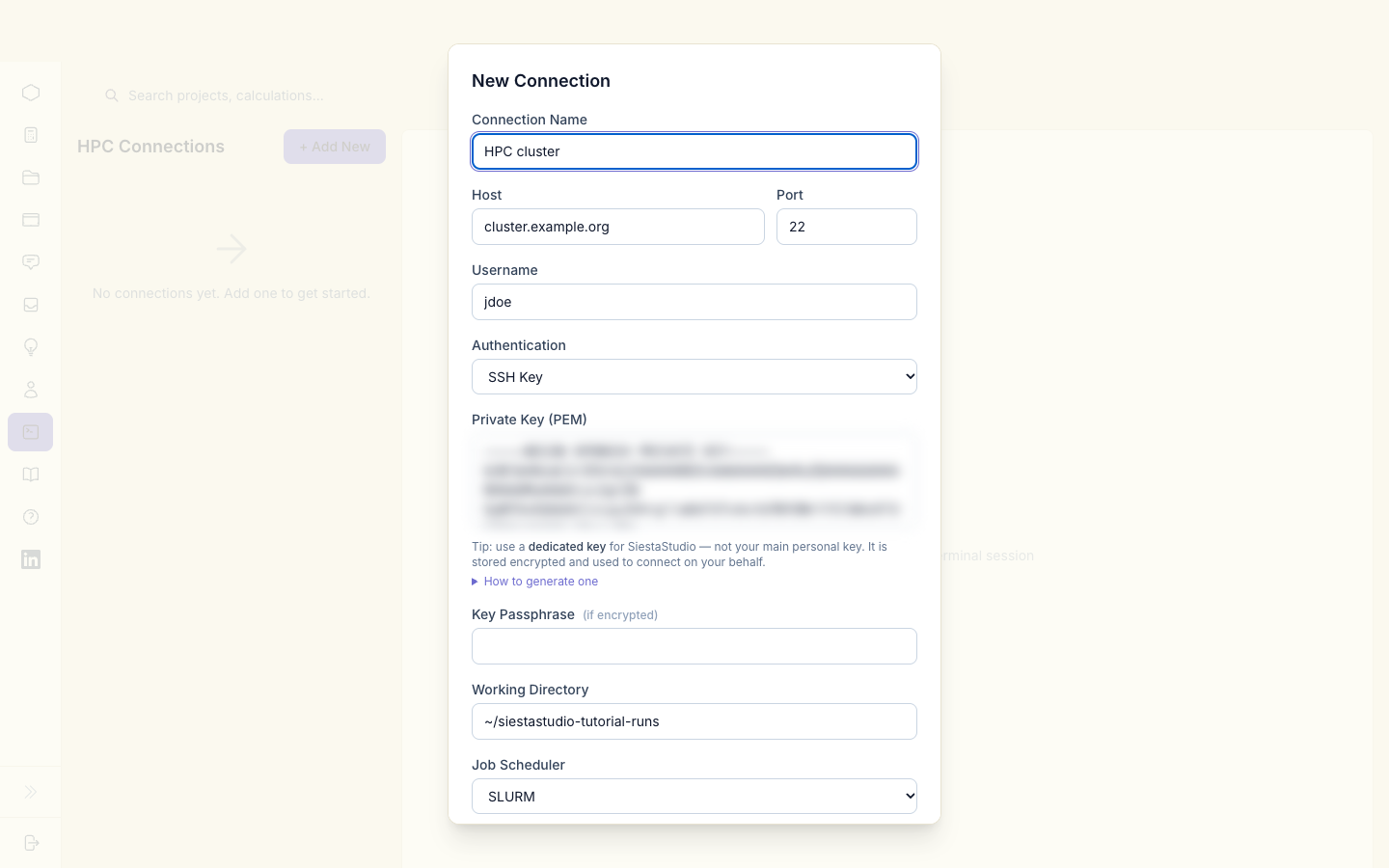
Save it. The key is stored encrypted and is never sent back to your browser: the connection list shows the host and user, not the key.
Click Test on the connection. Connection successful means SiestaStudio could log in.
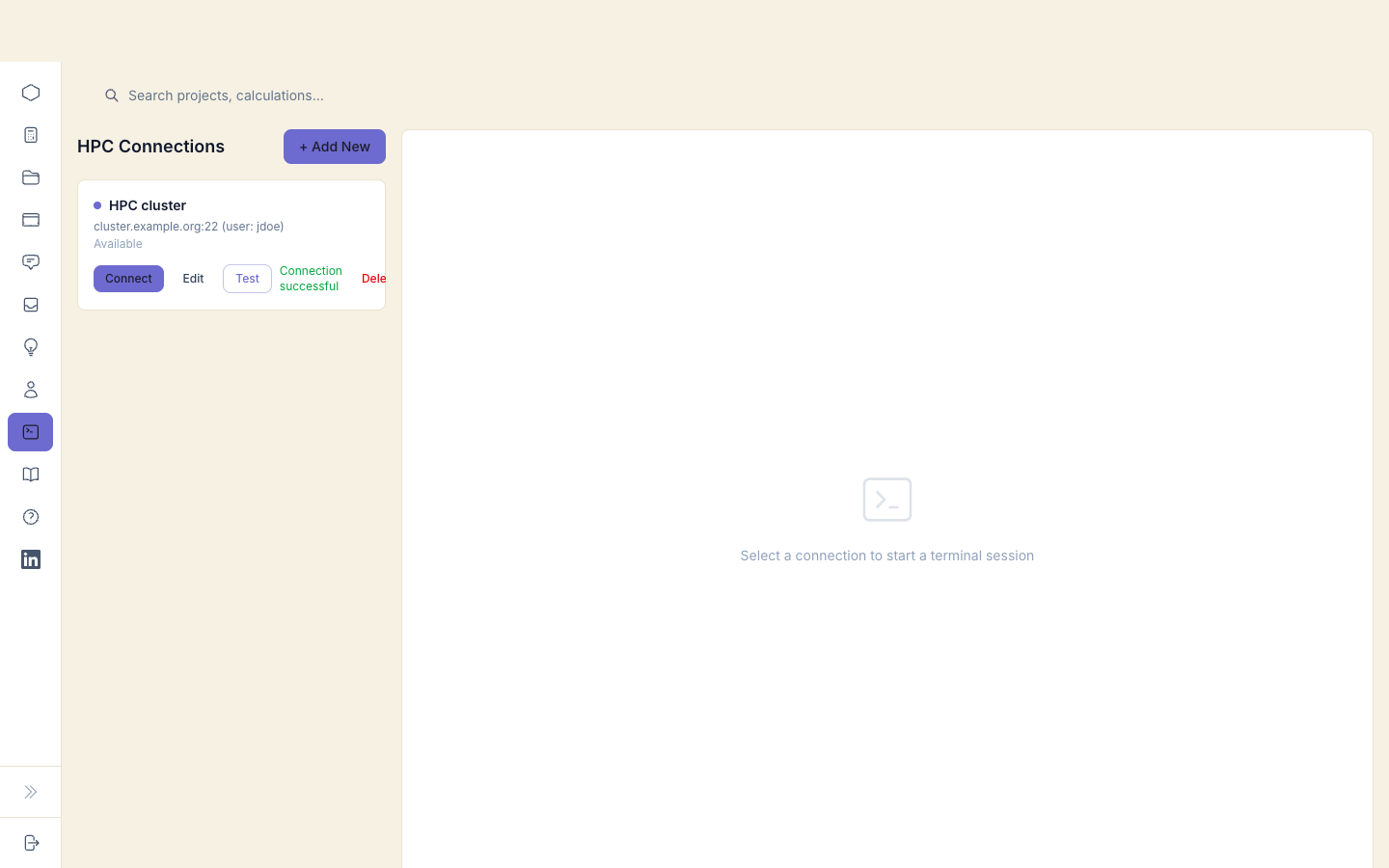
Connect opens a terminal on the cluster in the page, for the things you
would otherwise do in your own terminal: looking at files, squeue -u $USER,
checking a module.
4. Run on the cluster
Open the saved calculation in the studio (Load in the project, or from Calculations) and click Run on cluster in the header (the arrow). Choose:
- Connection: your cluster.
- Pseudopotentials: Upload from studio fetches them and sends them with the input. Use it when the compute nodes cannot reach the internet, which is common.
- Auto-import results: Primary (.out) only brings
siesta.outback into the project when the job finishes. All recognized outputs brings every output SiestaStudio can read, as many as your project has room for (a free account holds five analyses per project); the job list then says which outputs were left out. - Cores
1, Partition as on your cluster, Wall time00:10:00, Memory2G. Many SLURM sites refuse a job that does not state its memory.
The Submit script below shows the batch script that will run: the
#SBATCH lines, module load for your modules, and the SIESTA command. You
can edit it before submitting, for example to add an account line your
centre requires.
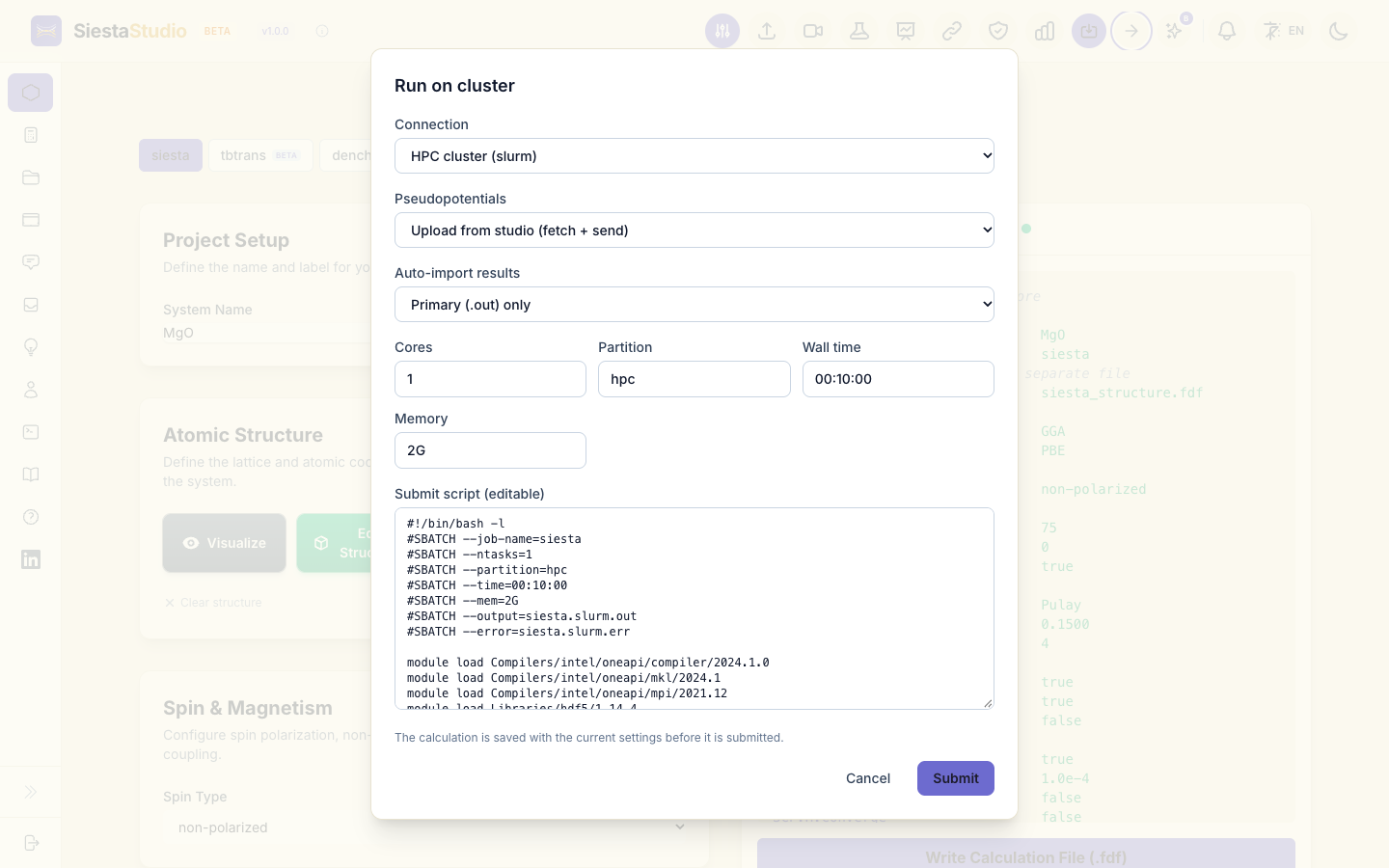
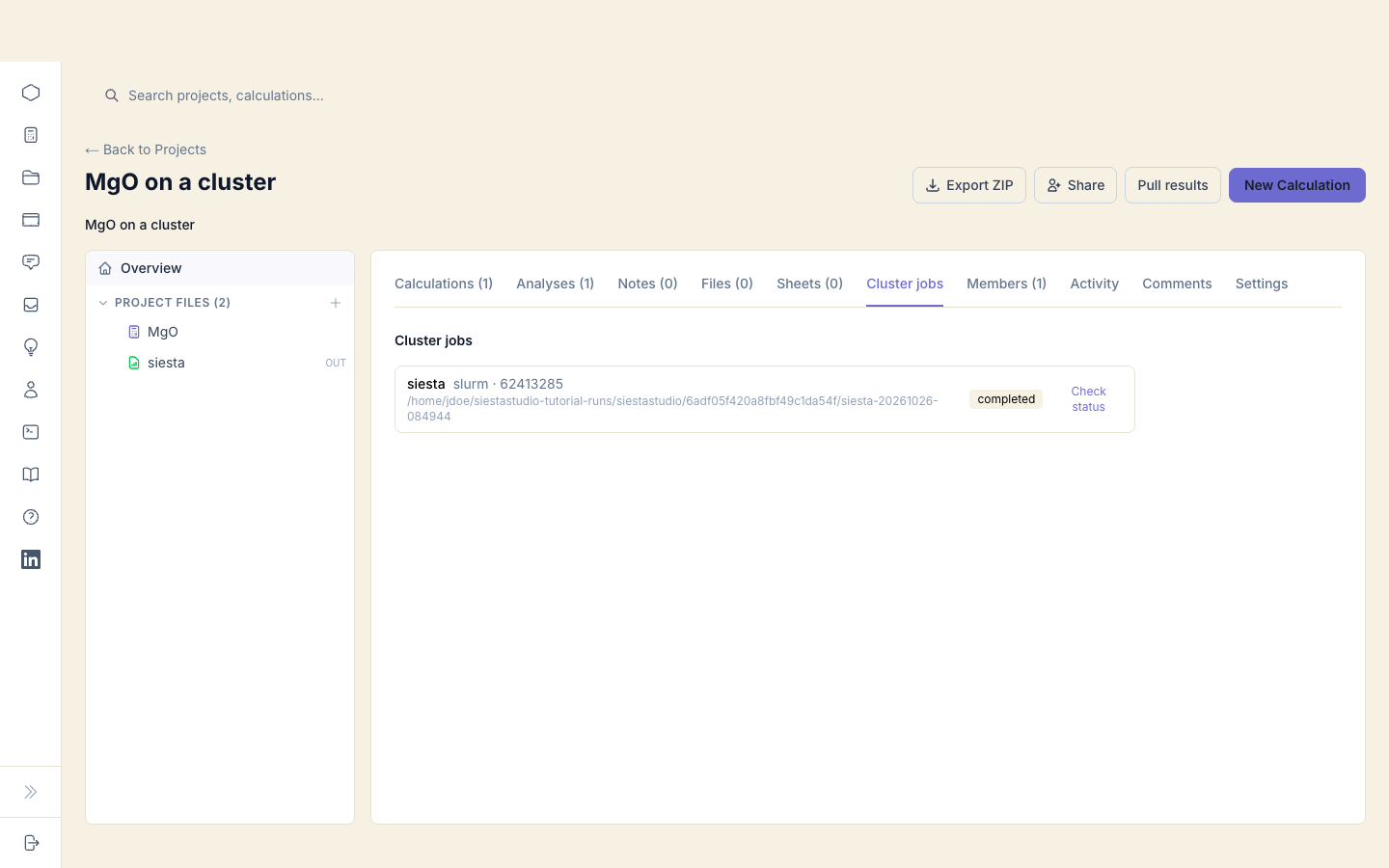
Click Submit. SiestaStudio creates the job folder on the cluster, uploads the input and the pseudopotentials, and submits the script. The job's number and folder appear in the project's Cluster jobs tab.
The job runs what the studio shows: if you changed a setting since you last saved, SiestaStudio saves the calculation with the current settings before it submits the job, as the dialog says.
5. The job finishes
SiestaStudio checks the job every few minutes. When it has finished, its
status turns to completed, siesta.out appears in the project's
Analyses tab, and you get a notification.
Open the siesta.out analysis: the total energy is the one at the end of
siesta.out on the cluster, -2067.365447 eV for MgO with these settings.
6. Pull a file by hand
The other outputs stay on the cluster until you want them, and a job you
submitted yourself is not watched at all. Pull results on the project
page lists your working directory on the cluster. Open the job's folder,
tick the outputs you want, here siesta.EIG (SiestaStudio offers only files
it can read), and click Import.
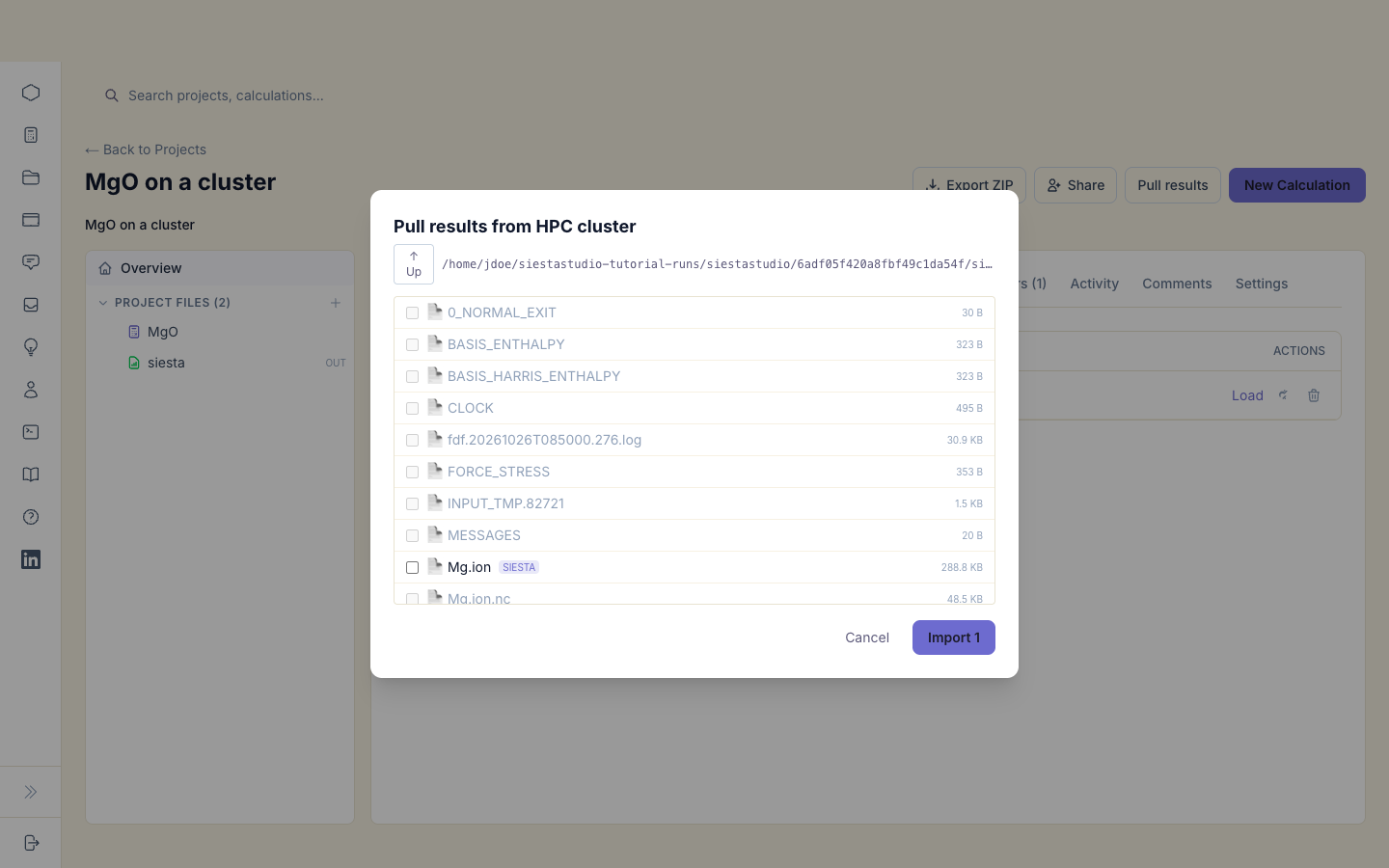
Pulled files count towards the project's analyses too; when the project is full, SiestaStudio says so and imports nothing more.
Withdrawing access
To stop SiestaStudio from logging in to your cluster, delete the connection
in Terminal, and remove the siestastudio line from
~/.ssh/authorized_keys on the cluster. The job folders stay in your
working directory until you delete them.
What next
- When a run fails: what to do when SIESTA stops, including a failed cluster job.