Building structures
The structure builder is where you make and change atomic structures before a calculation. This tutorial is a tour of its tools on silicon and a few other systems. No SIESTA run is needed. You will:
- generate a crystal and export it in four file formats,
- find its space group and primitive cell,
- check the coordination of an atom,
- build a supercell, dope it, strain it, add an interstitial,
- make a carbon nanotube, load a CIF file, search a materials database,
- generate an NEB path for a vacancy hop,
- stack two materials into a heterostructure.
It takes about 30 minutes. Each tool has an Undo in History, so you can try things and step back.
1. Open the builder and generate silicon
Create a project Builder tour, open the studio, and click Edit
Structure. In Generate Structure, choose Diamond Cubic, set a
to 5.43 Å and the element to Si, and click Generate Structure. The
status bar at the bottom shows 8 atoms, 1 species.
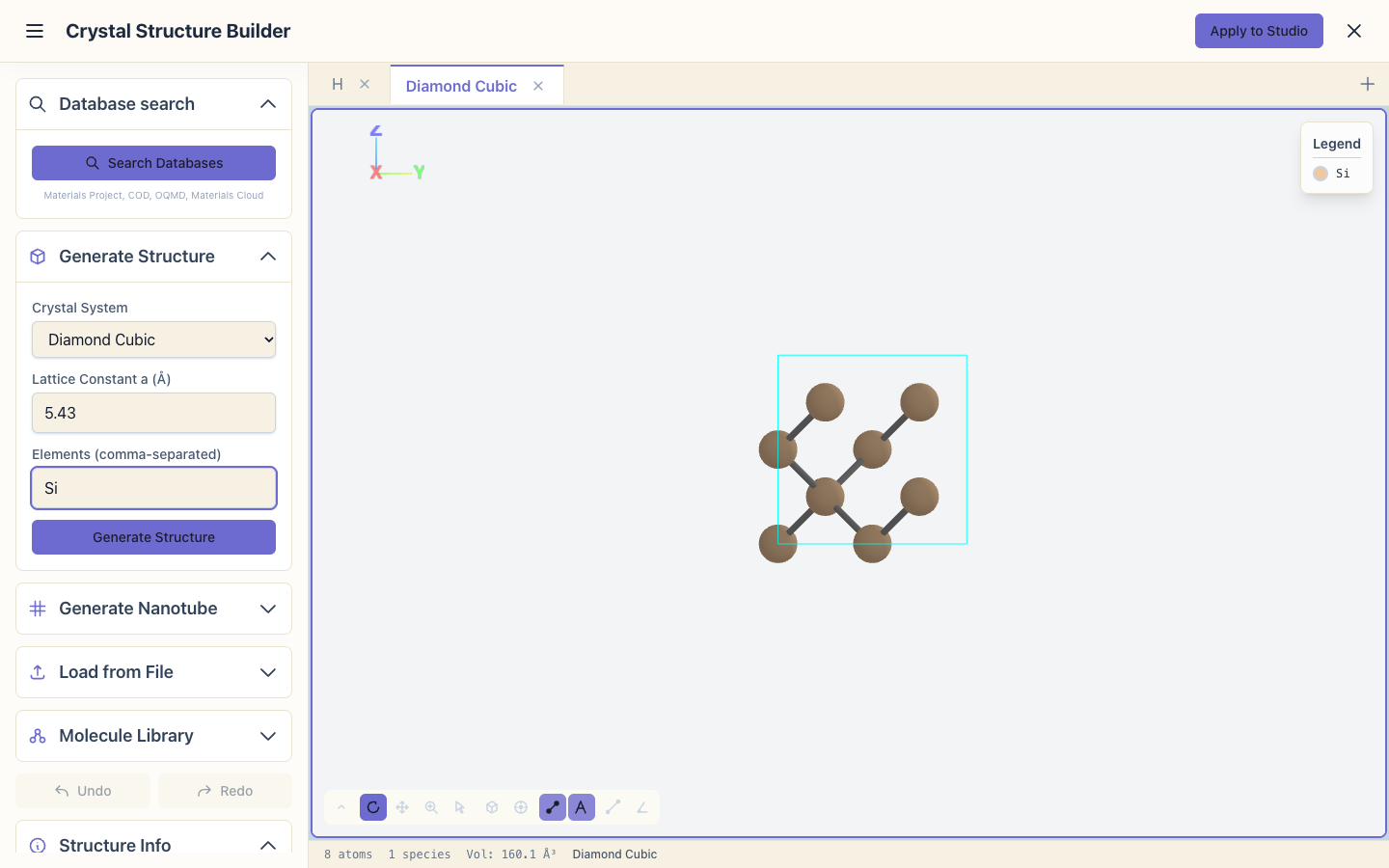
The status bar always shows the atom count, the species and the cell volume of the structure on screen. Use it to check every step below.
2. Export
Open Export. Save as CIF, Save as XSF, Save as FDF and Save
as XV each download the structure in that format, all with the same 8
atoms. CIF and XSF open in most visualisers (VESTA, XCrySDen, Ovito); FDF is
the SIESTA structure input; XV is SIESTA's own geometry file. The XV file is
saved with a lowercase .xv extension; rename it to <SystemLabel>.XV if you
want SIESTA to read it back with MD.UseSaveXV.
3. Symmetry and the primitive cell
Open Symmetry and click Detect Symmetry. For diamond silicon it reports Space Group: 227 — Fd-3m, point group m-3m, cubic, 192 operations (48 point operations times the 4 face-centring translations).
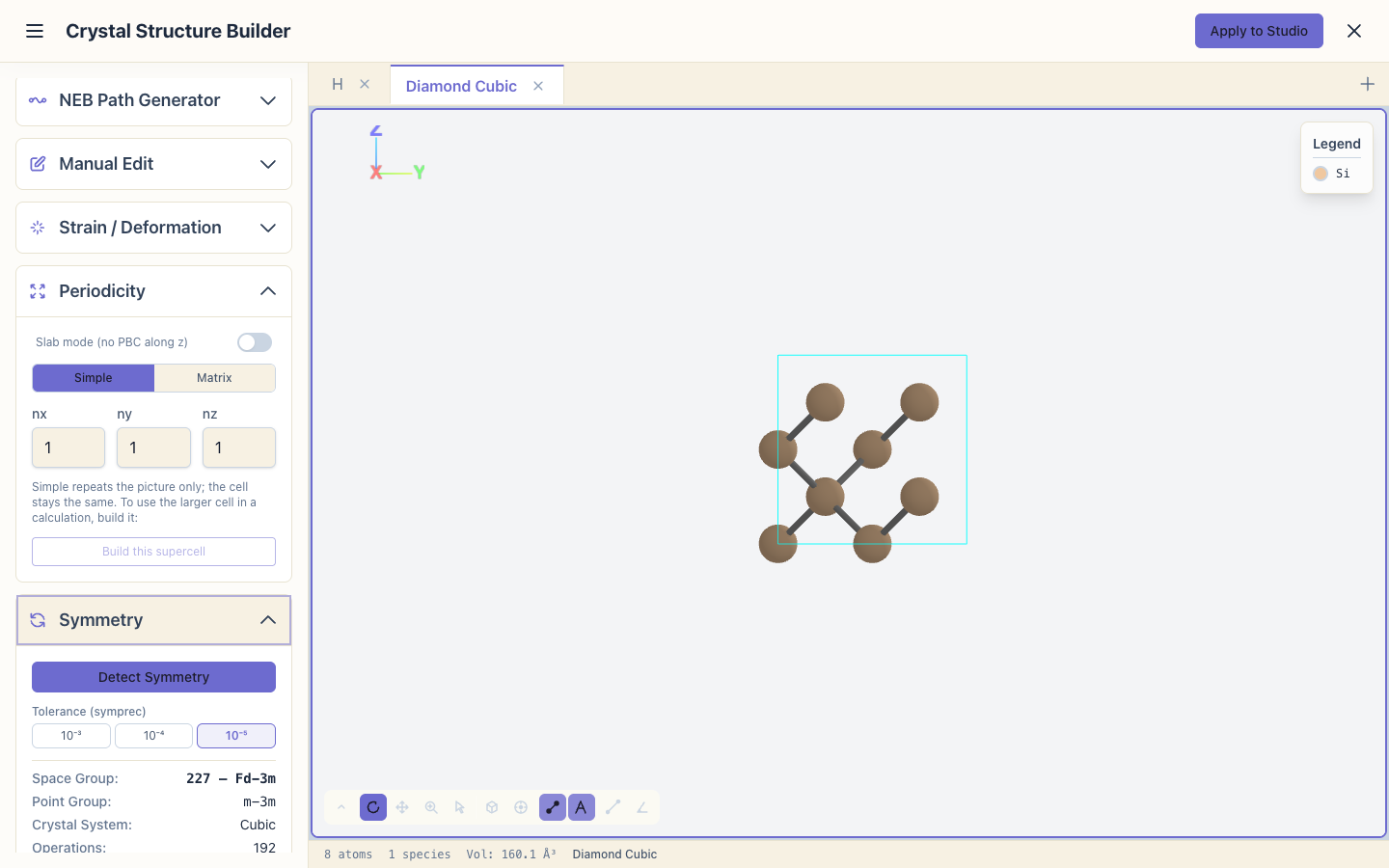
Tolerance (symprec) sets how far atoms may be from ideal positions and still count as symmetric; loosen it for structures from experiment or a relaxation.
Click Primitive Cell: the status bar shows 2 atoms, the smallest cell of diamond silicon (a quarter of the cubic cell). Click Undo to return to the 8-atom cell.
4. Coordination
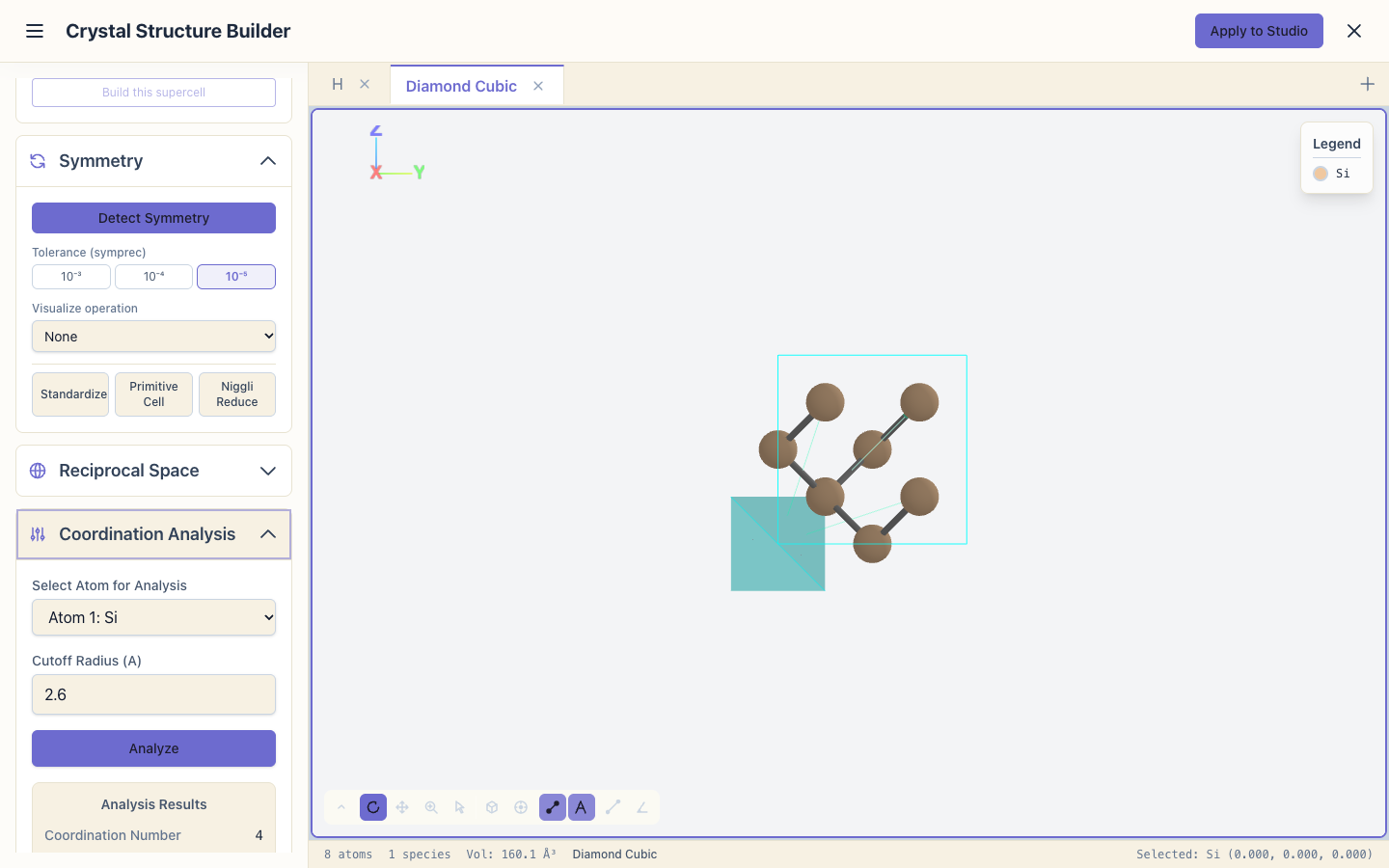
Open Coordination Analysis. Choose an atom, set the cutoff to 2.6
Å (between the first neighbour shell at 2.35 Å and the second at 3.84 Å),
and click Analyze. The coordination number is 4: each silicon atom
bonds to four others in a tetrahedron.
5. Supercell
Open Periodicity, choose Matrix, click 2×2×2, then Apply Supercell: 64 atoms. (The Simple mode repeats only the picture on screen; its Build this supercell button makes the larger cell from it.)
6. Doping
Open Doping / Alloy. Choose Si as the element to replace and
P — Phosphorus as the dopant, keep Random, and move Concentration
to 25%. The panel says how many atoms it will replace (16 of 64). The
Seed (default 42) fixes the random choice, so the same seed gives the
same structure again. Click Apply Doping: the status bar shows 2 species,
and the legend lists P.
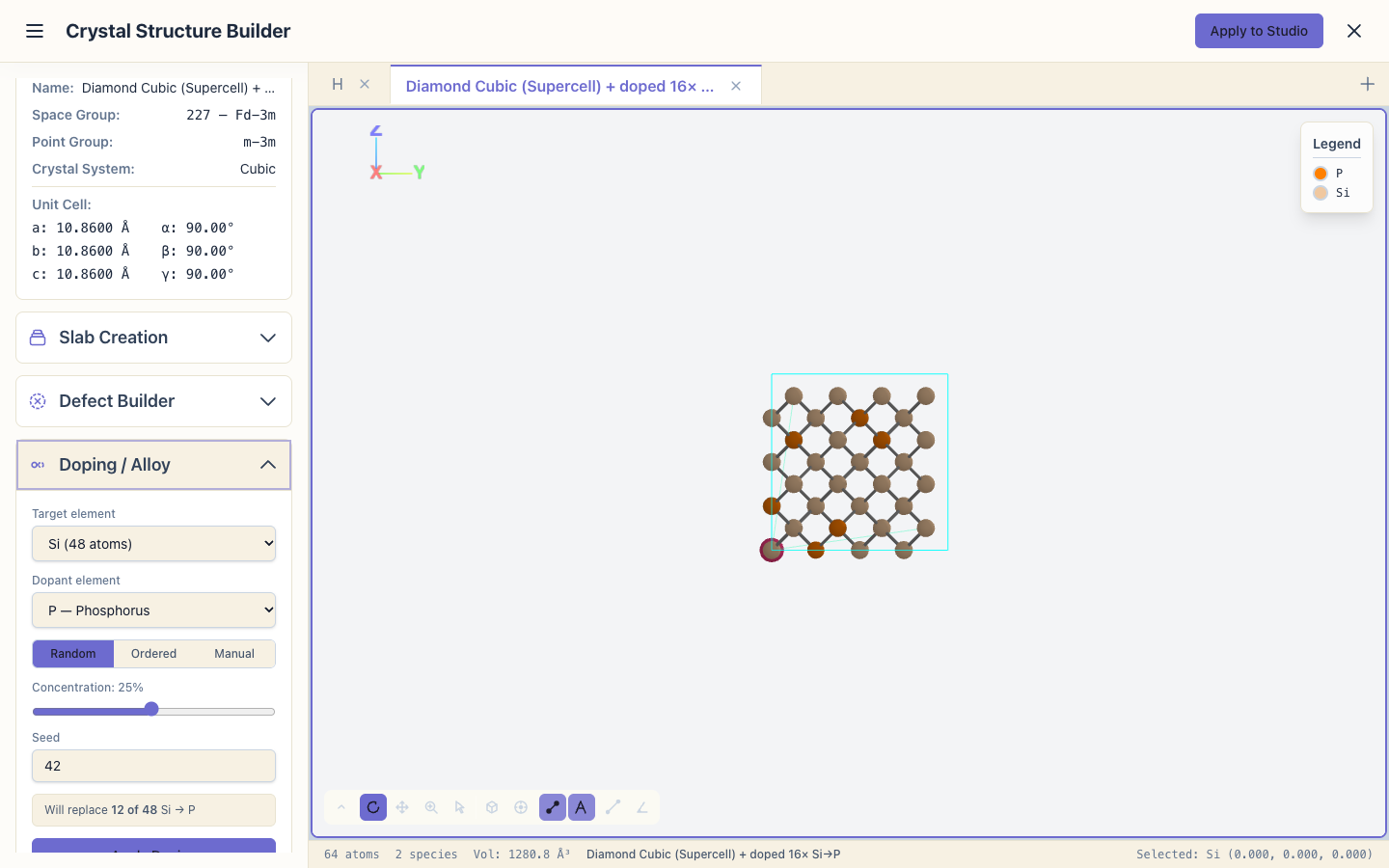
Ordered spreads the dopants evenly instead, and Manual lets you pick the atoms. Click Undo.
7. Strain
Open Strain / Deformation, choose Hydrostatic, enter 2 (%), and
click Apply Strain. Every lattice vector grows by 2%, so the volume grows
by 1.02³ = 1.0612: from 1280.8 to 1359.2 ų in the status bar. Use this to
compute energy against volume or band gaps under strain. Click Undo.
8. An interstitial
Open Defect Builder and click Interstitial. The panel suggests empty sites of the cell, with fractional coordinates of the current cell (here the 2x2x2 supercell). The first is a Tetrahedral site at (0.25, 0.25, 0.25) of the supercell, which is the centre (½, ½, ½) of a conventional cubic cell: an empty site with four silicon neighbours at 2.35 Å. Click it: an atom is added there, 65 atoms.
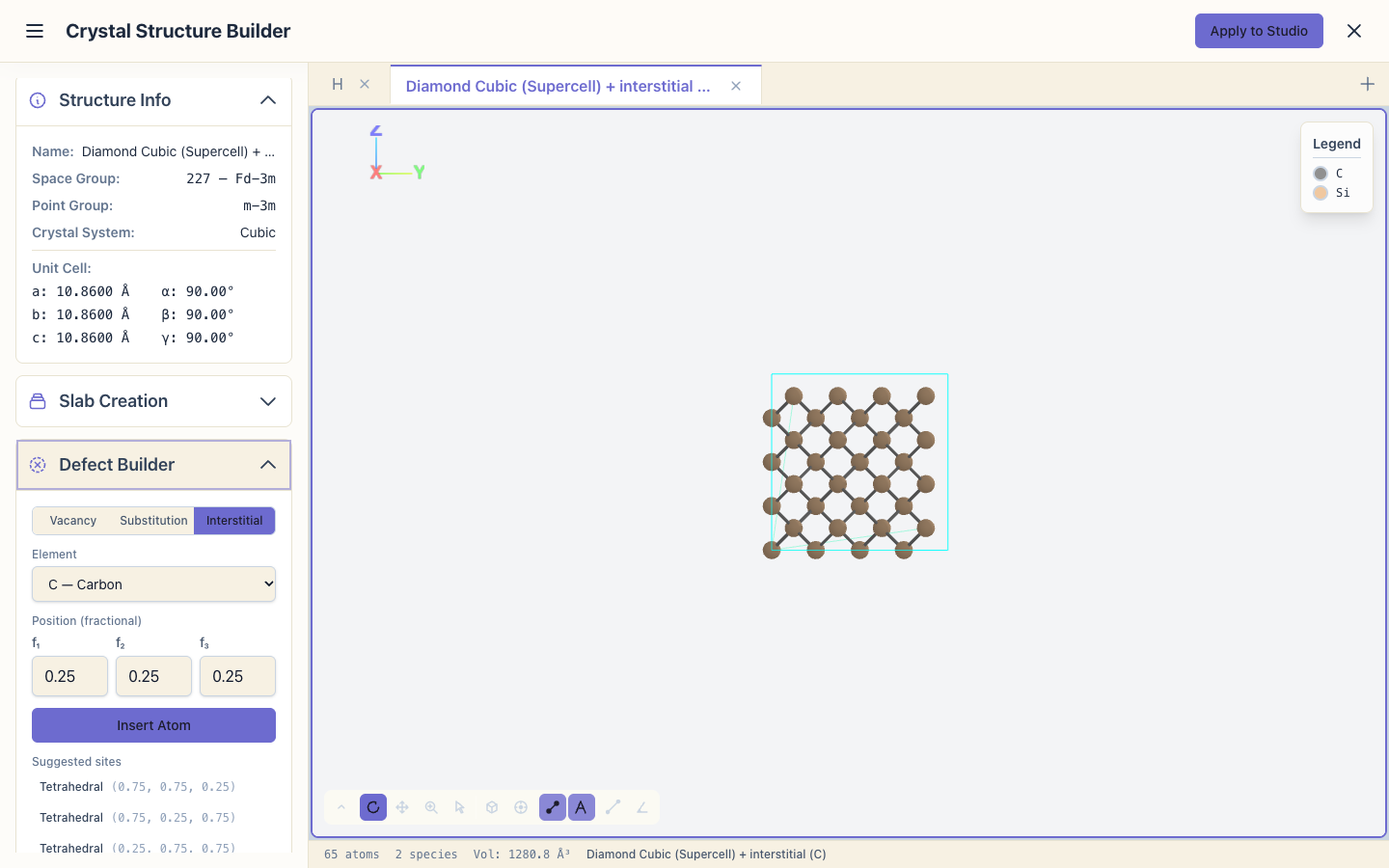
The Defect Builder's Vacancy removes a selected atom (Remove Selected Atom), or keeps it as a ghost, its basis functions without the nucleus (Keep as Ghost (basis only)), for counterpoise-corrected vacancy energies. A ghost needs radii for its own basis; the ghost-atom section of Basis sets shows how to get them, and it applies to the ghosts of a vacancy NEB path too. Relaxing a structure relaxes a vacancy with SIESTA.
9. A nanotube in a new scene
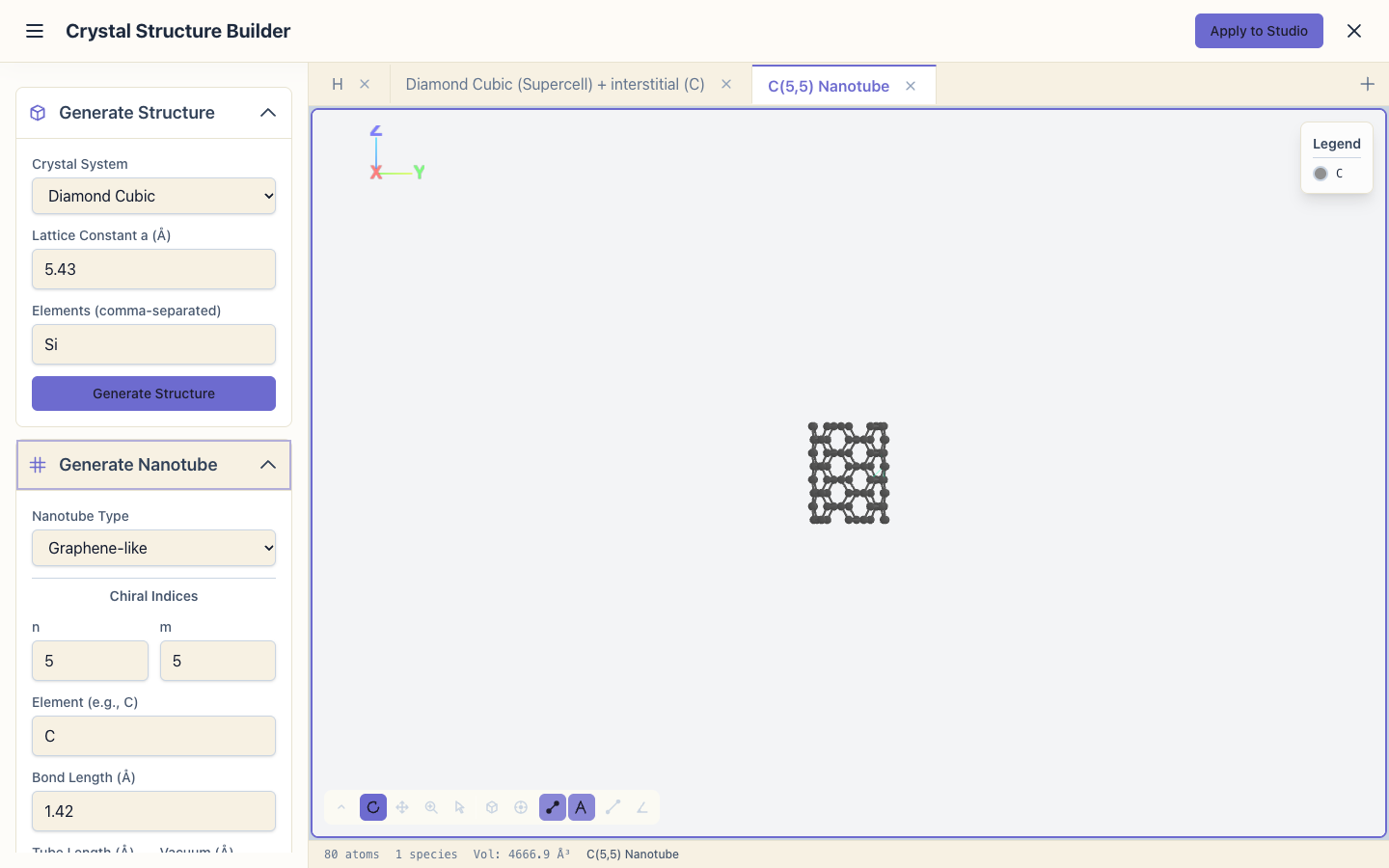
Scenes are tabs above the view; each holds its own structure. Click + to open a new scene. Open Generate Nanotube and click Generate Nanotube with the default settings: a (5,5) carbon nanotube, C(5,5) Nanotube in the status bar. The length along the tube is rounded to whole periods of the tube (2.46 Å for (5,5)), so the default 10 Å becomes four periods, 9.84 Å, with 80 atoms: a cell that repeats without seams.
10. Load a file
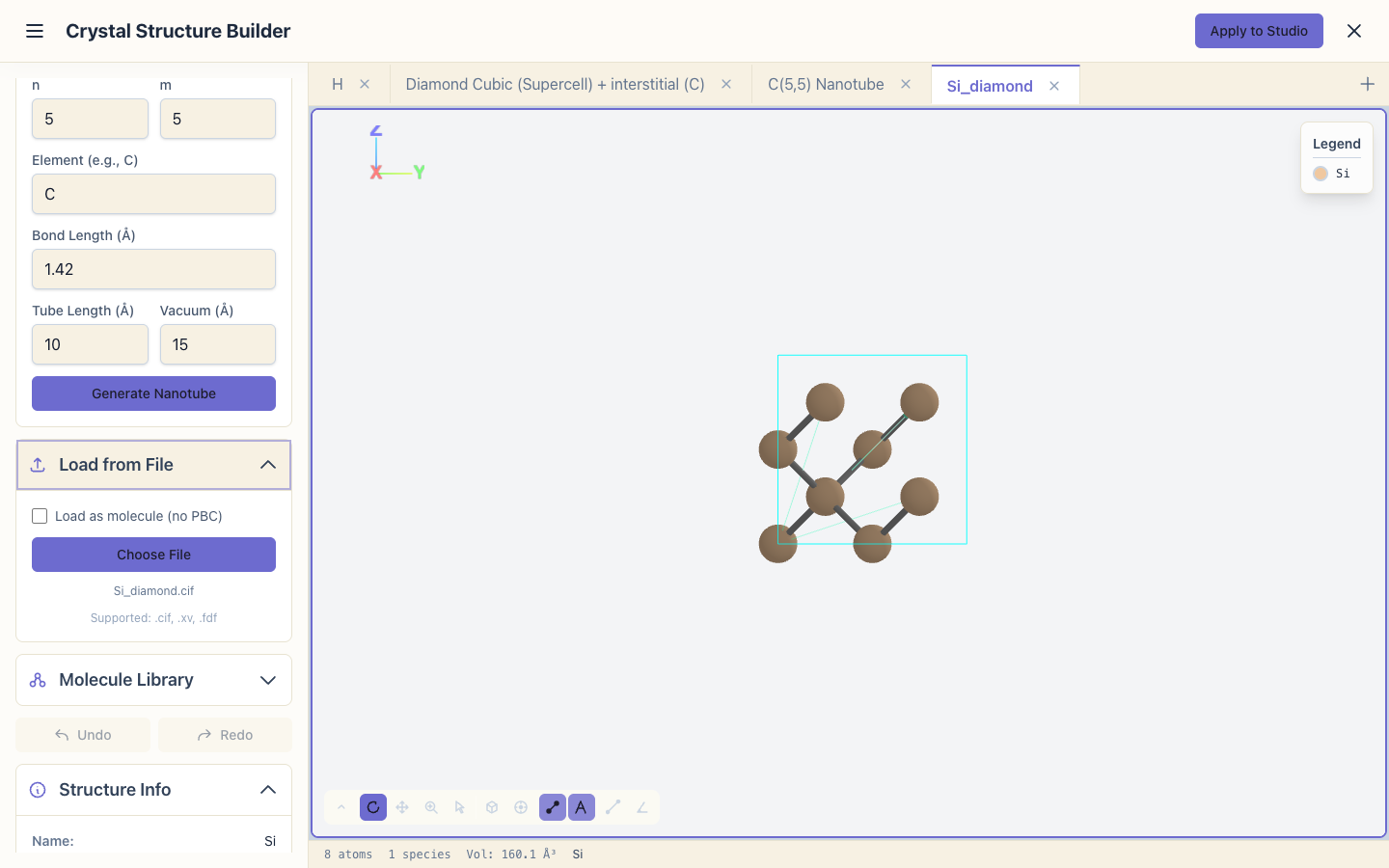
Open another scene. In Load from File, choose a structure file: CIF,
FDF, XV, XSF, XYZ or extended XYZ (the studio's Upload File takes the
same). This tutorial uses Si_diamond.cif, a CIF of diamond silicon: 8
atoms, the scene named after the file.
11. An NEB path
The nudged elastic band (NEB) method finds the energy barrier for an atom moving from one site to another. It needs a chain of images: the start, the end, and positions in between. The builder makes that chain.
In the Si_diamond scene, open NEB Path Generator and keep the
mechanism Vacancy — Atom hops to neighbor site. Then:
- Pick the migrating atom: click an atom in the view, or choose it in Manual Edit (Atom 1 (Si)); the selection is shared between panels.
- Under Nearest neighbors, click the first neighbour (Si, 2.35 Å away). That neighbour's site becomes the vacancy the atom hops into.
- Set Images to
5and click Generate Path.
The preview shows Image 0 / 6 (initial): 7 images, the two end points and 5 in between. Step through them with the slider. No collision warning appears.
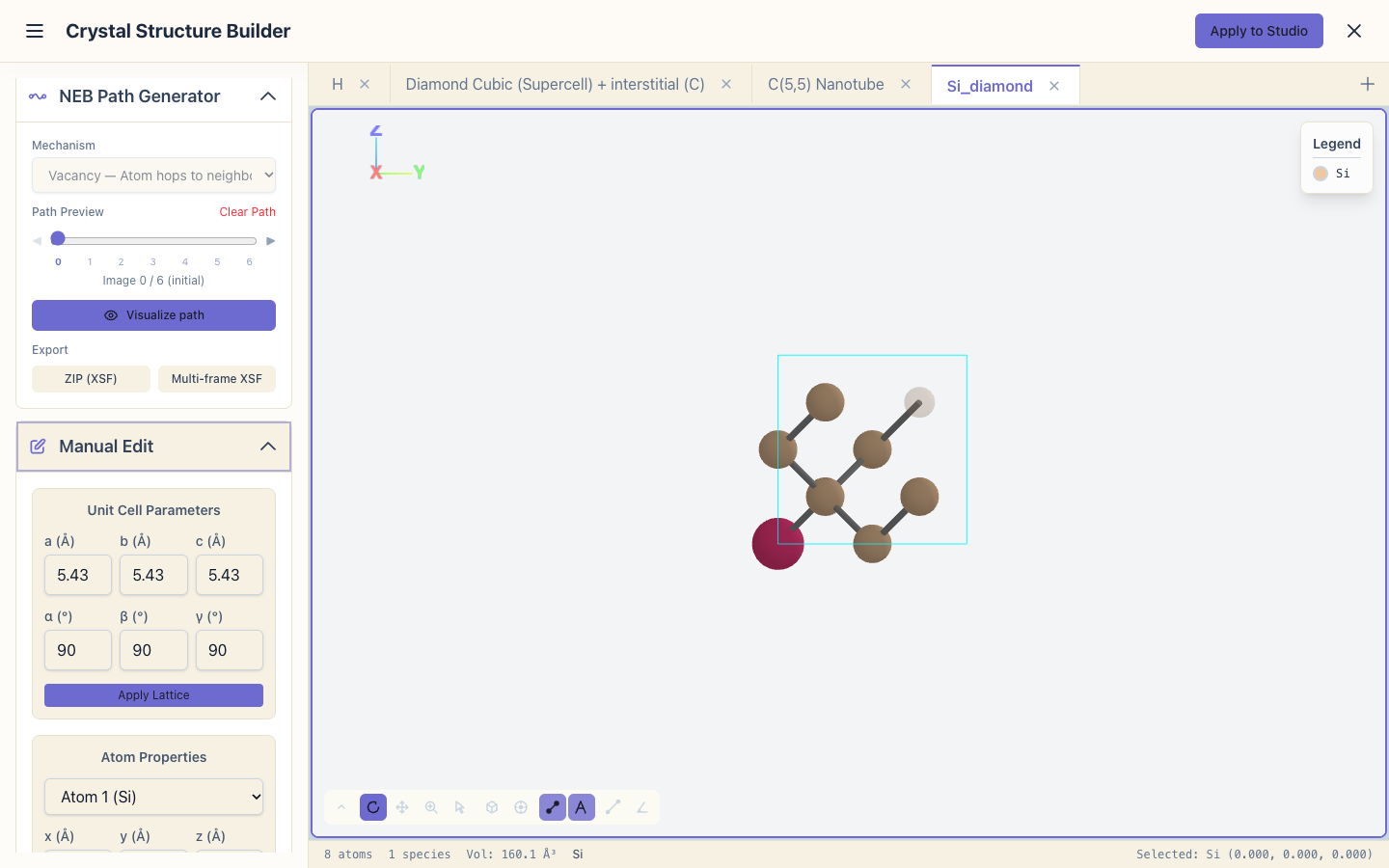
Visualize path plays the chain in the 3D viewer; Export saves it as a ZIP of XSF files or a multi-frame XSF. Clear Path goes back to the selection.
12. A heterostructure
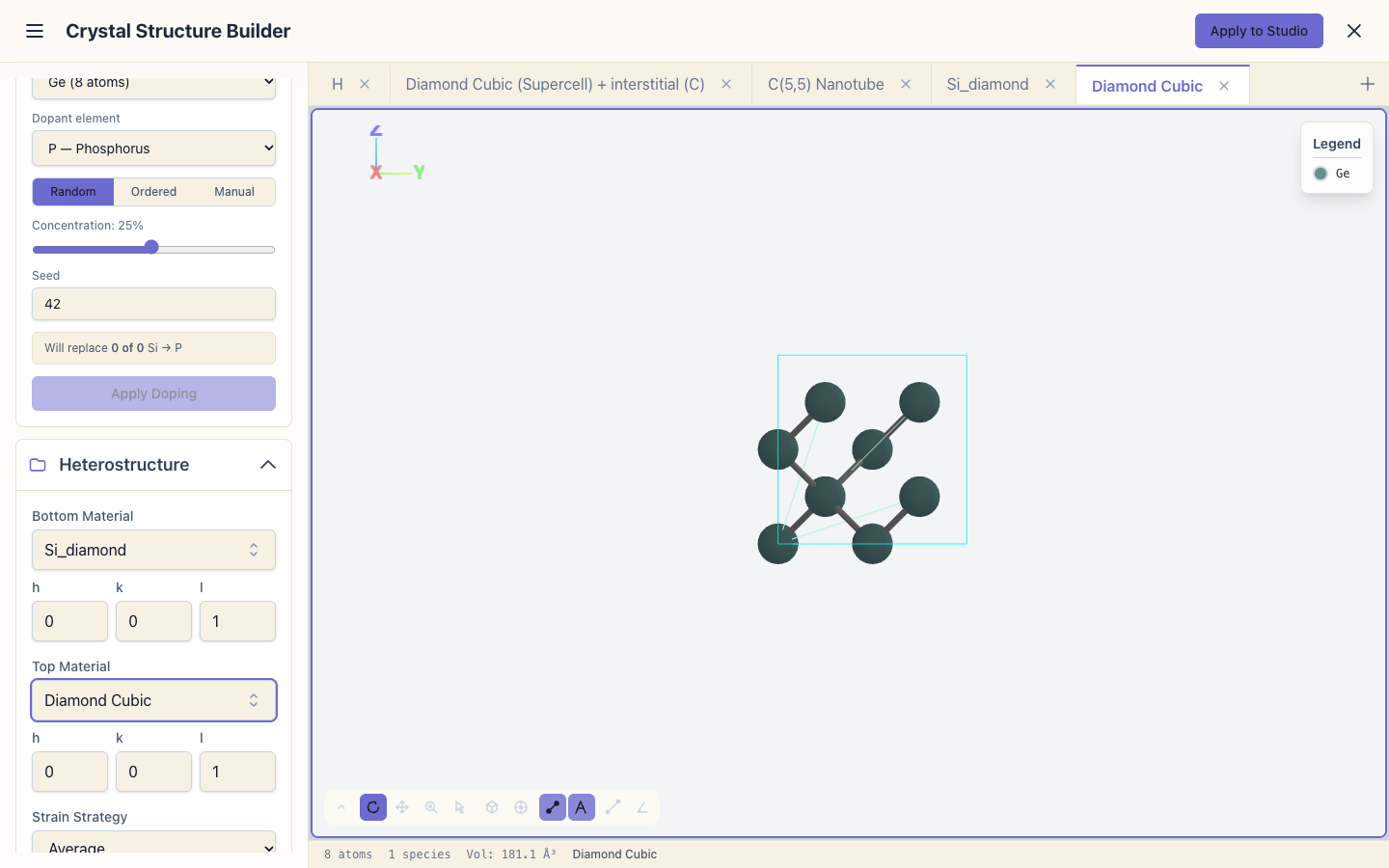
Open a new scene and generate germanium: Diamond Cubic, a 5.658 Å,
element Ge. Then open Heterostructure:
- Bottom Material: the
Si_diamondscene, Miller indices (0, 0, 1); - Top Material: the germanium scene (named Diamond Cubic), (0, 0, 1);
- Strain Strategy: Average (both layers take the average in-plane lattice constant);
- interlayer distance 2.5 Å and vacuum 15 Å (the defaults).
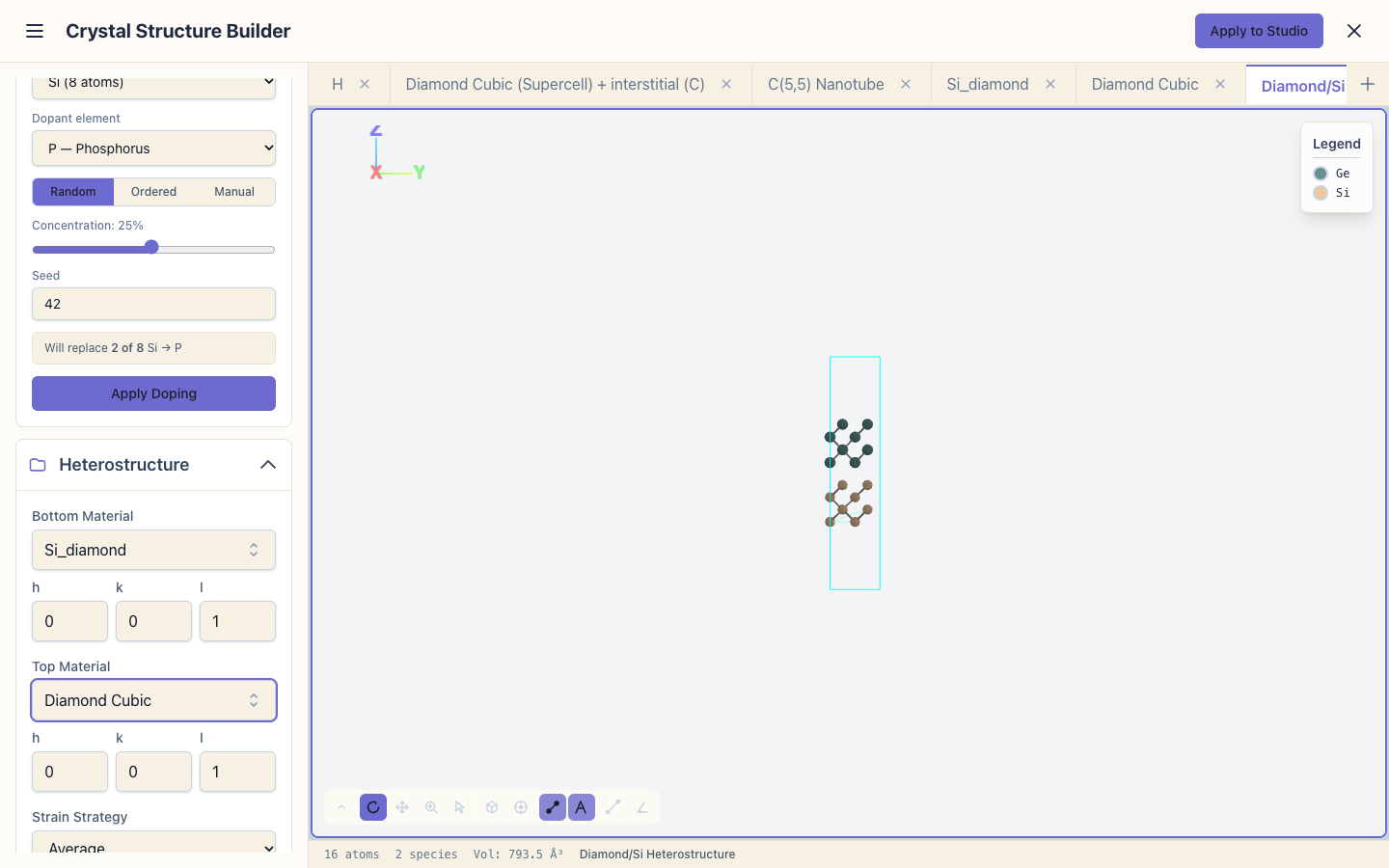
Click Create Heterostructure. The result opens in a new scene, Diamond/Si Heterostructure, and both source scenes stay as they were. It has 16 atoms and two species: 8 Si below, 8 Ge above, all inside the cell, with the stack in the middle and 15 Å of vacuum split between above and below. The in-plane lattice constant is 5.544 Å, the average of silicon and germanium.
For materials whose lattices do not match, choose Minimize Strain and click Find Best Match: the builder lists supercell pairs with their mismatch.
13. A materials database
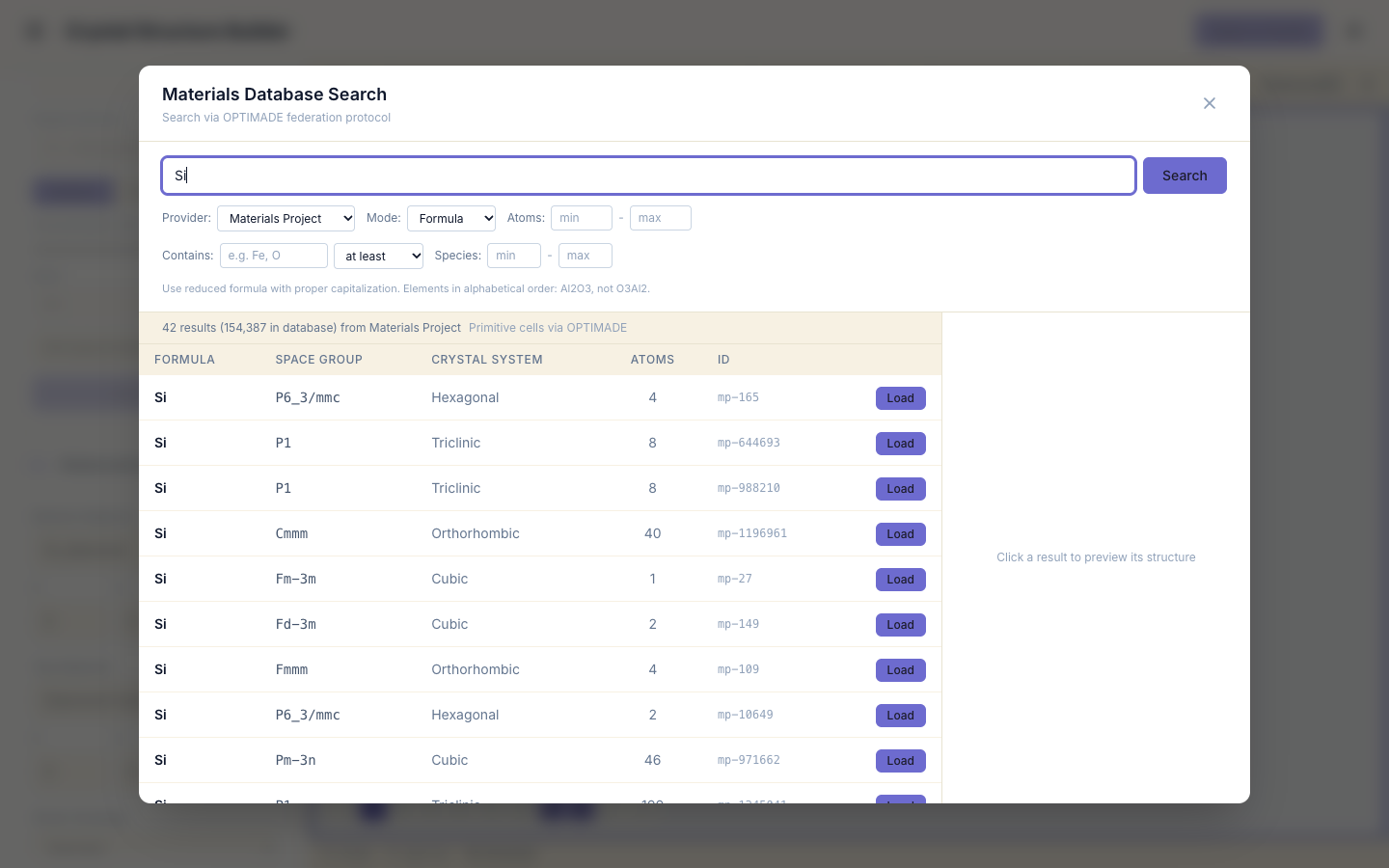
Open a new scene and Database search, click Search Databases, type
Si and press Enter. SiestaStudio asks the Materials Project database
(through OPTIMADE) and lists the matches. Load puts one in the scene.
14. Back to the studio
Apply to Studio sends the structure of the current scene to the studio, where you set up the calculation (Your first calculation).
What next
- Relaxing a structure: a supercell with a vacancy, relaxed with SIESTA.
- Surfaces and the work function: slab creation and molecule adsorption.