Charge density and potential grids: looking inside MgO
SIESTA can write the electron density and the potentials on its real-space grid. In this tutorial you ask for three of these grids for MgO, run SIESTA, and look at them in SiestaStudio: the electron density as a 3D surface and as a slice, the electrostatic (Hartree) potential averaged along an axis, and the density used for Bader charge analysis.
It takes about 15 minutes; the SIESTA run takes a few seconds.
1. Load MgO and set up a single-point calculation
Create a project named MgO grids, open the studio, search for MgO with
Search DB and import mp-1265. Run the Calculation Setup Wizard
with Bulk Crystal, Insulator, Single-point energy and
Standard, and Apply All (see Your first
calculation).
2. Ask SIESTA to write the grids
In the Grid Output panel:
- Switch on Save Total Charge Density (Rho).
- Open Show More Grid Options and switch on Save Electrostatic Potential and Enable Bader Charge Analysis.
- Leave Grid File Format on binary.
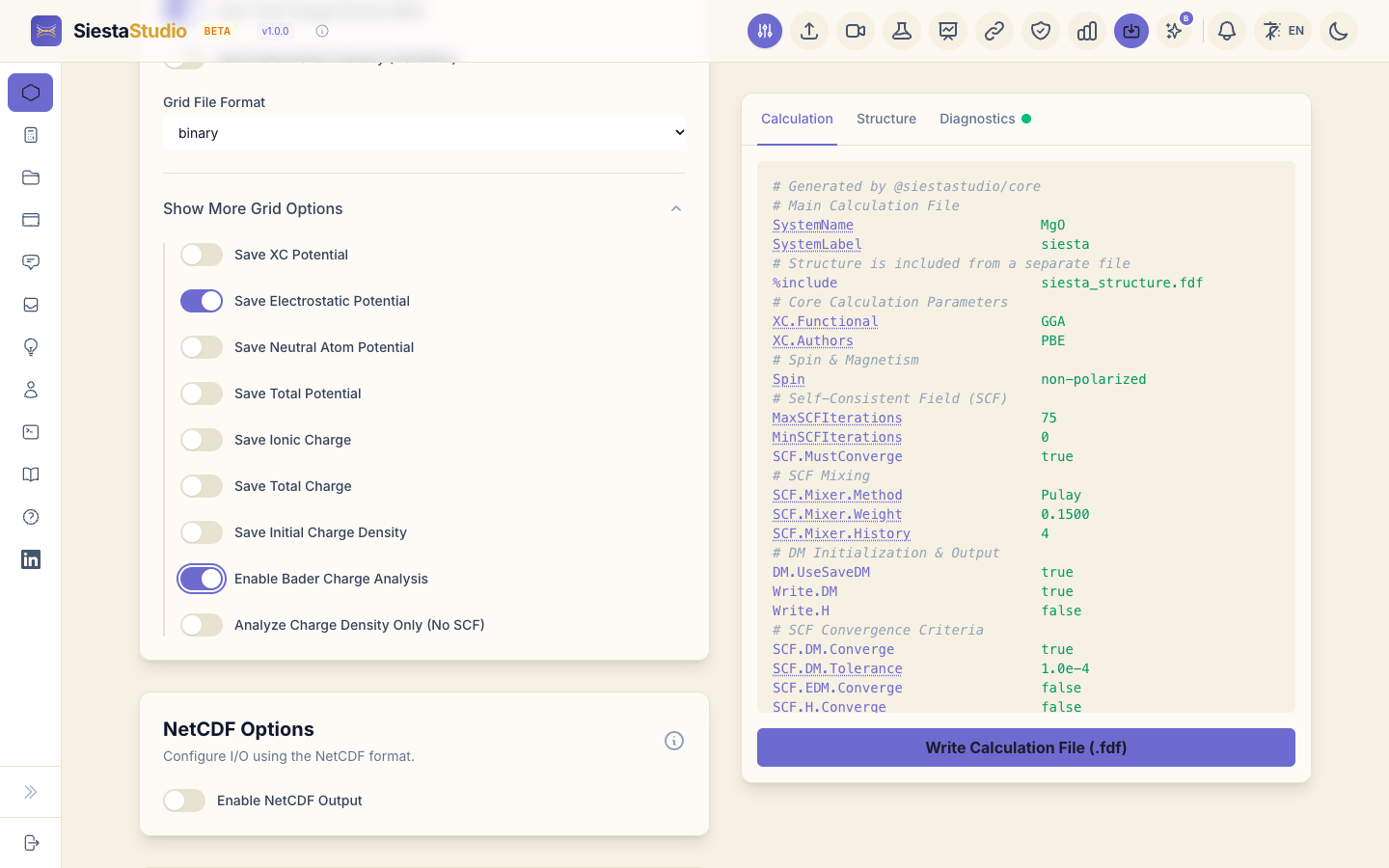
SIESTA writes grid files in its own binary format or as ASCII text; binary files are smaller and are what SiestaStudio reads.
The input preview on the right now contains SaveRho,
SaveElectrostaticPotential and SaveBaderCharge, all true, and
SaveGridFunc.Format binary.
3. Check, download, save and run
Check Diagnostics, download both input files and the pseudopotentials, save the calculation to the project, and run SIESTA:
siesta < siesta.fdf > siesta.out
Besides siesta.out you now have siesta.RHO (the electron density),
siesta.VH (the Hartree potential), siesta.BADER (the density for Bader
analysis) and siesta.XV (the structure).
4. The electron density
Open Analyze File and drop in siesta.RHO. The Overview tab shows the
size of the grid, 24 × 24 × 24 points, the same mesh SIESTA reports in
siesta.out (InitMesh: MESH = 24 x 24 x 24), and the range of the density
values; the density is nowhere negative.
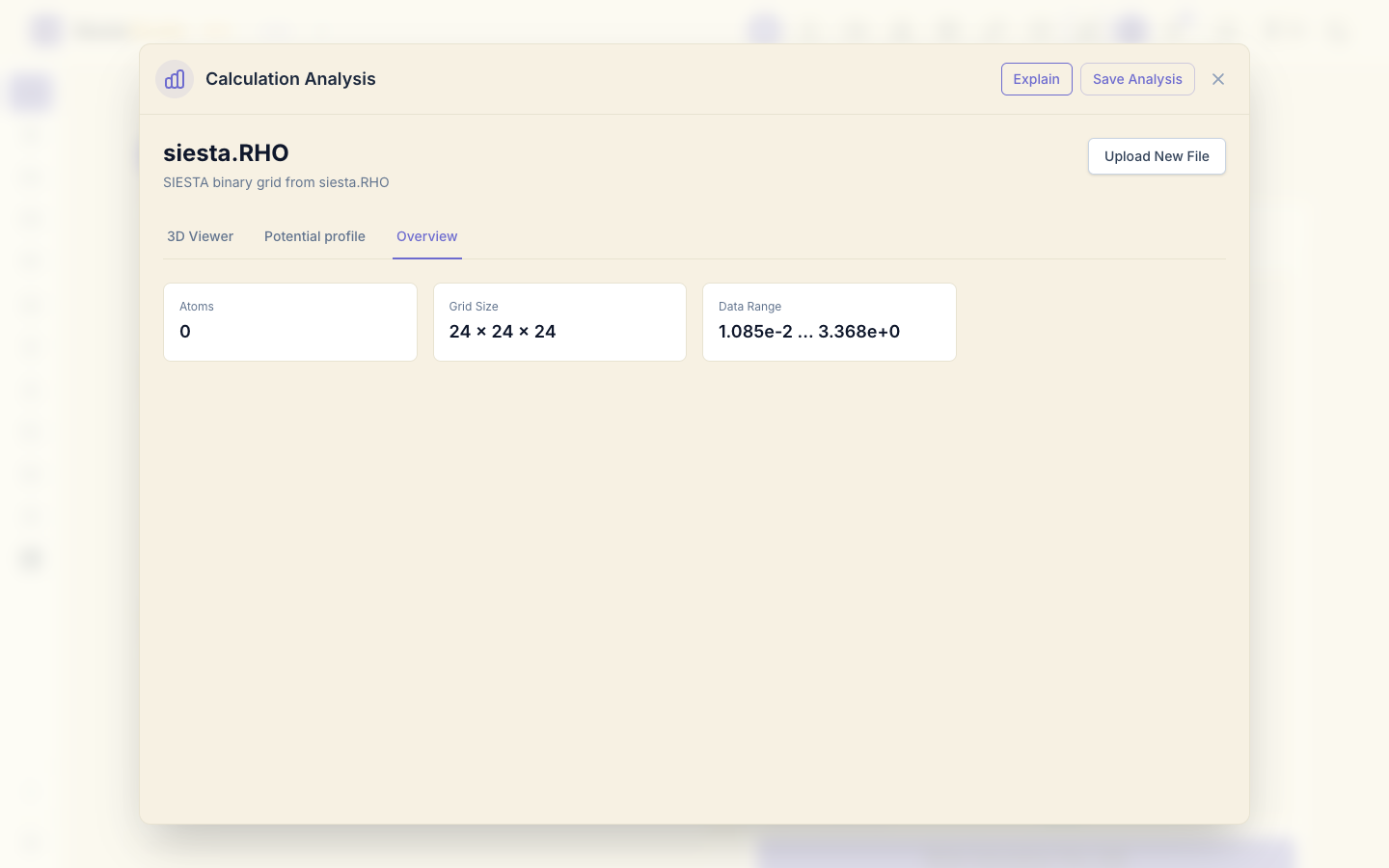
The grid file holds the density but not the atoms. On the 3D Viewer tab,
click Load Structure (.XV / .fdf) and choose siesta.XV to add the cell.
Zoom in with the mouse wheel.
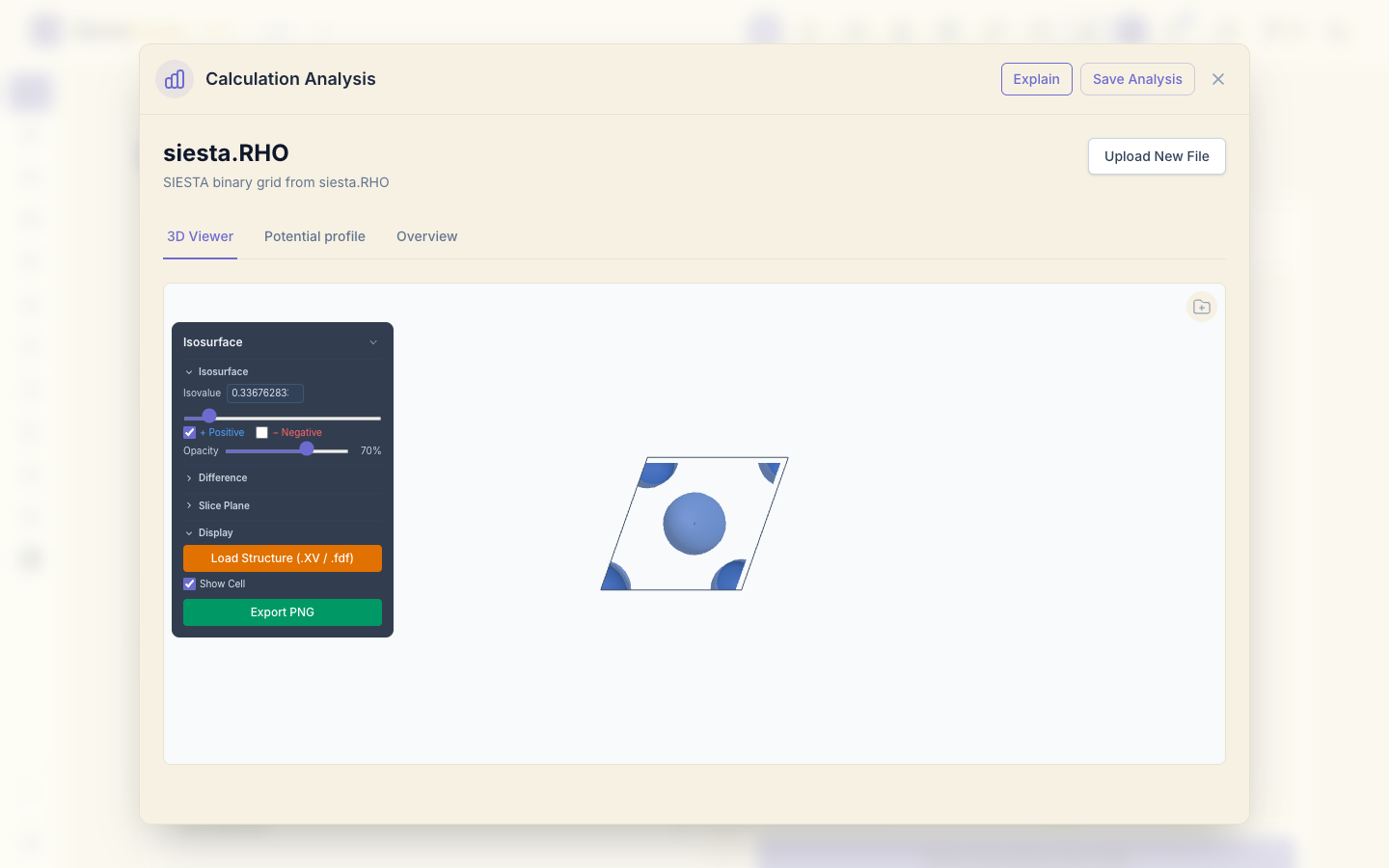
The surface encloses the regions where the density is above the Isovalue (10% of the maximum to start with). The large sphere is the oxygen ion, which holds most of the electrons; the small caps at the corners of the cell belong to magnesium. Move the Isovalue slider to see how the surfaces shrink or grow.
5. A slice through the density
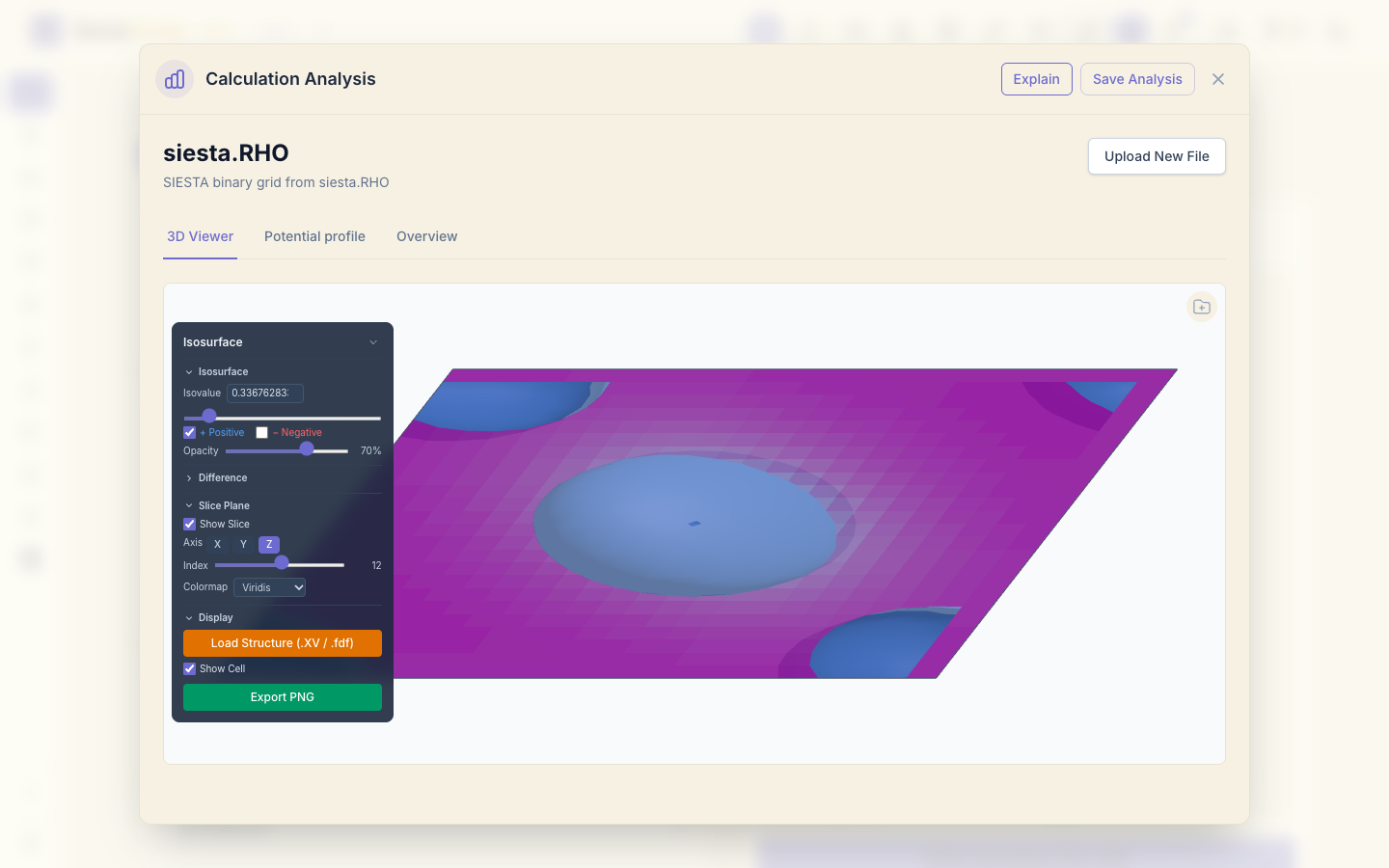
Open Slice Plane, tick Show Slice, and choose the axis Z. The slice shows the density on one plane of the grid, coloured from low to high; the Index slider moves the plane through the cell.
6. The Hartree potential
Click Upload New File and open siesta.VH. It has the same grid as the
density. Open the Potential profile tab and click Upload .xv for atomic
planes to add siesta.XV. SiestaStudio looks for vacuum in the cell and
reports bulk crystal (no vacuum gaps detected).
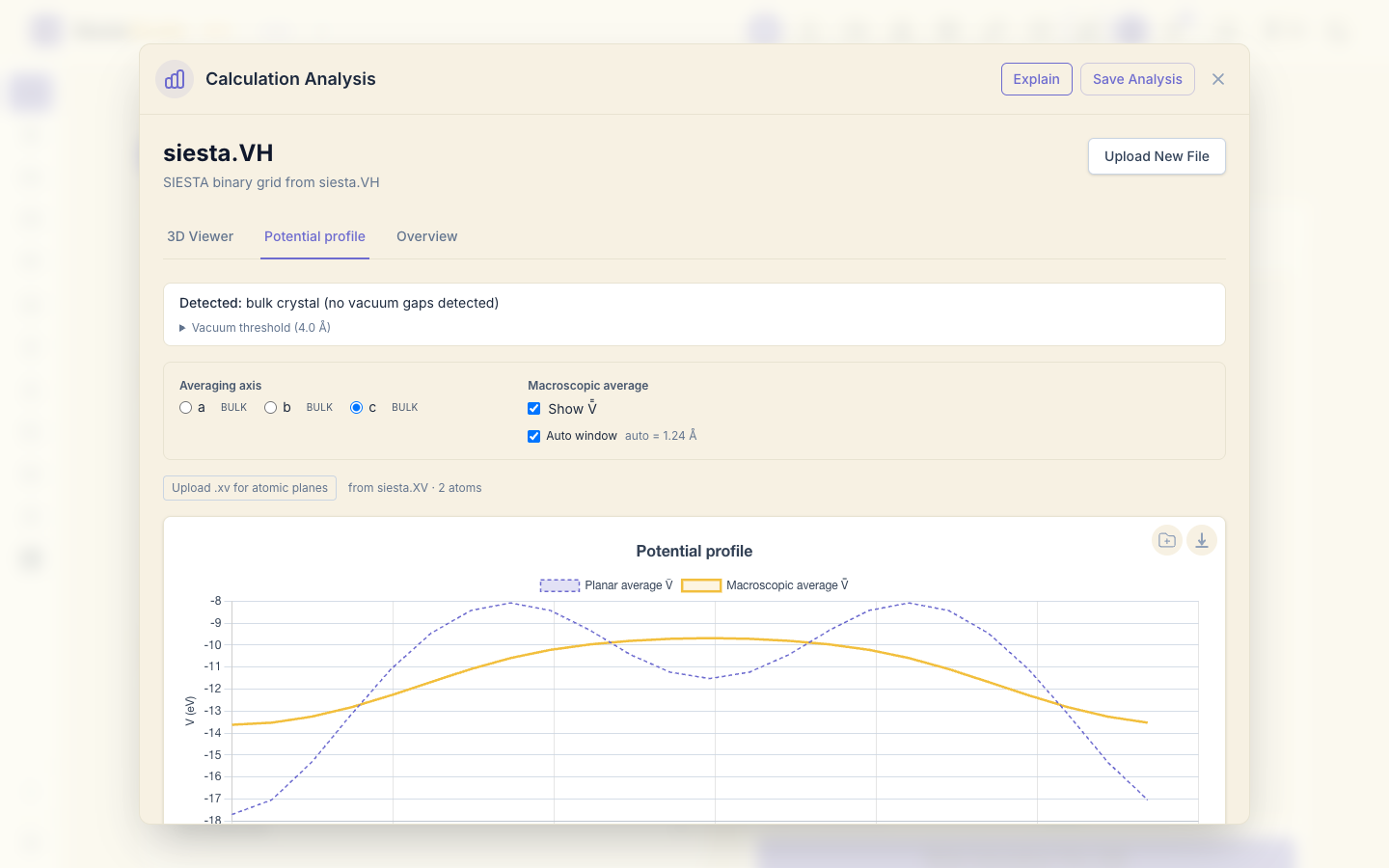
The dashed line is the potential averaged over planes perpendicular to the chosen axis; the solid line is its macroscopic average over one period. In a bulk crystal they just oscillate with the atomic planes. For a slab with vacuum the same view gives the vacuum level and the work function: see Surfaces and the work function.
7. The Bader density
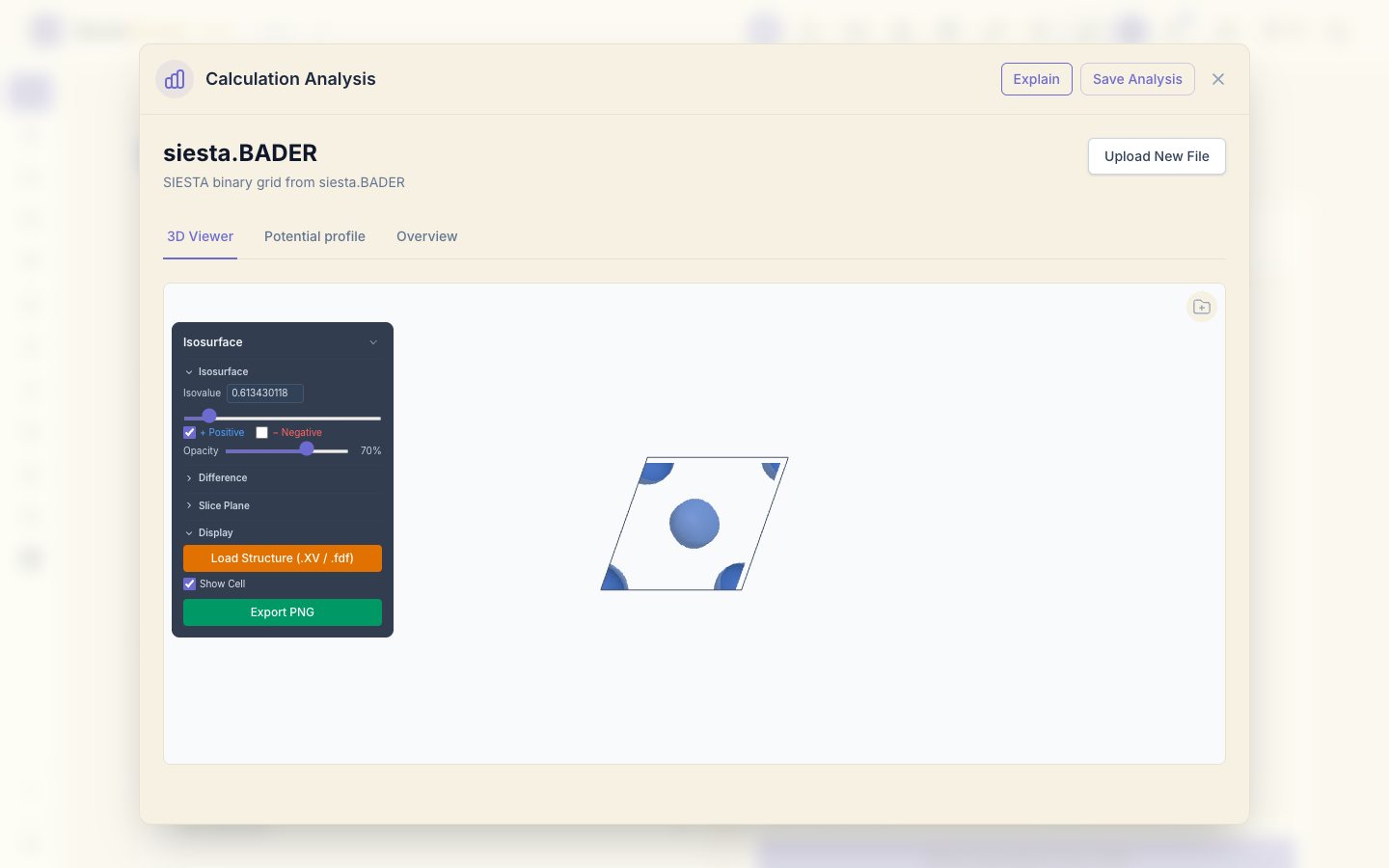
Open siesta.BADER. It is the density SIESTA prepares for a Bader charge
analysis (which assigns the electrons to atoms by dividing space at the
minima of the density); it has the same grid. The Bader charges themselves
are computed from this file by the separate bader program (Henkelman group,
University of Texas at Austin).
8. Save the analysis
Click Save Analysis, choose the project and save.
What next
- Surfaces and the work function: the same potential profile for a slab, with a vacuum level.
- Magnetism: spin-polarized iron.