Relaxing a structure with a defect: a vacancy in silicon
A missing atom (a vacancy) leaves four silicon atoms with a broken bond each. Those atoms move to new positions, and SIESTA can find them by relaxing the structure: it moves the atoms downhill in energy until the forces on them are small. In this tutorial you:
- build a silicon crystal in the structure builder,
- make it eight times larger (a 2x2x2 supercell, 64 atoms),
- remove one atom,
- set up a geometry optimisation with the wizard,
- run it and follow the relaxation in SiestaStudio: energy and forces per step, stress, and the atoms moving in the trajectory player.
It takes about 30 minutes, of which the SIESTA run is about 11 minutes on a laptop (one core).
Before you start
- A SiestaStudio account.
- SIESTA 5 on your computer.
- Your first calculation explains the parts this one goes through quickly (downloads, pseudopotentials, Analyze File).
1. Create a project and open the studio
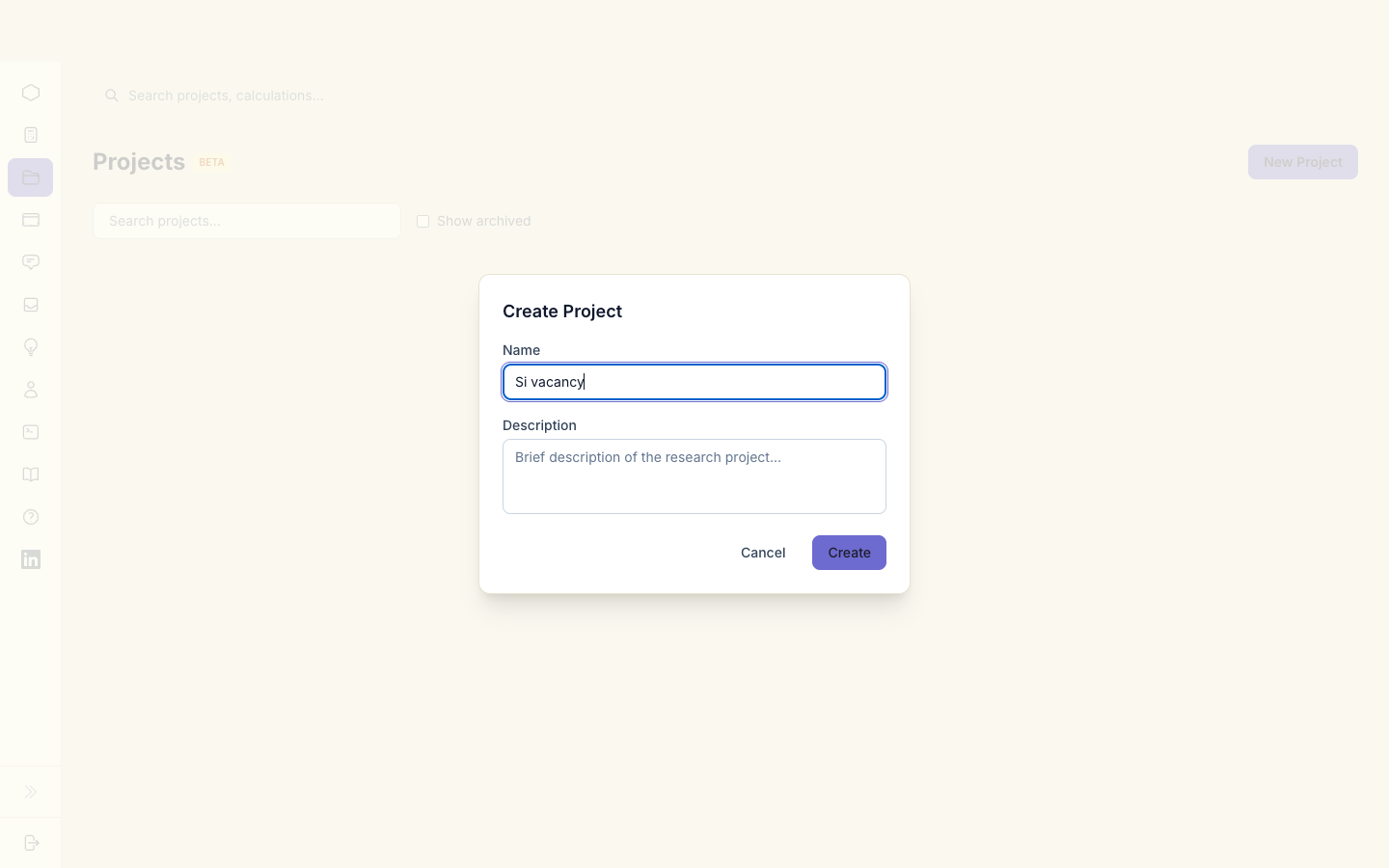
Create a project named Si vacancy and open the studio in it.
2. Build silicon in the structure builder
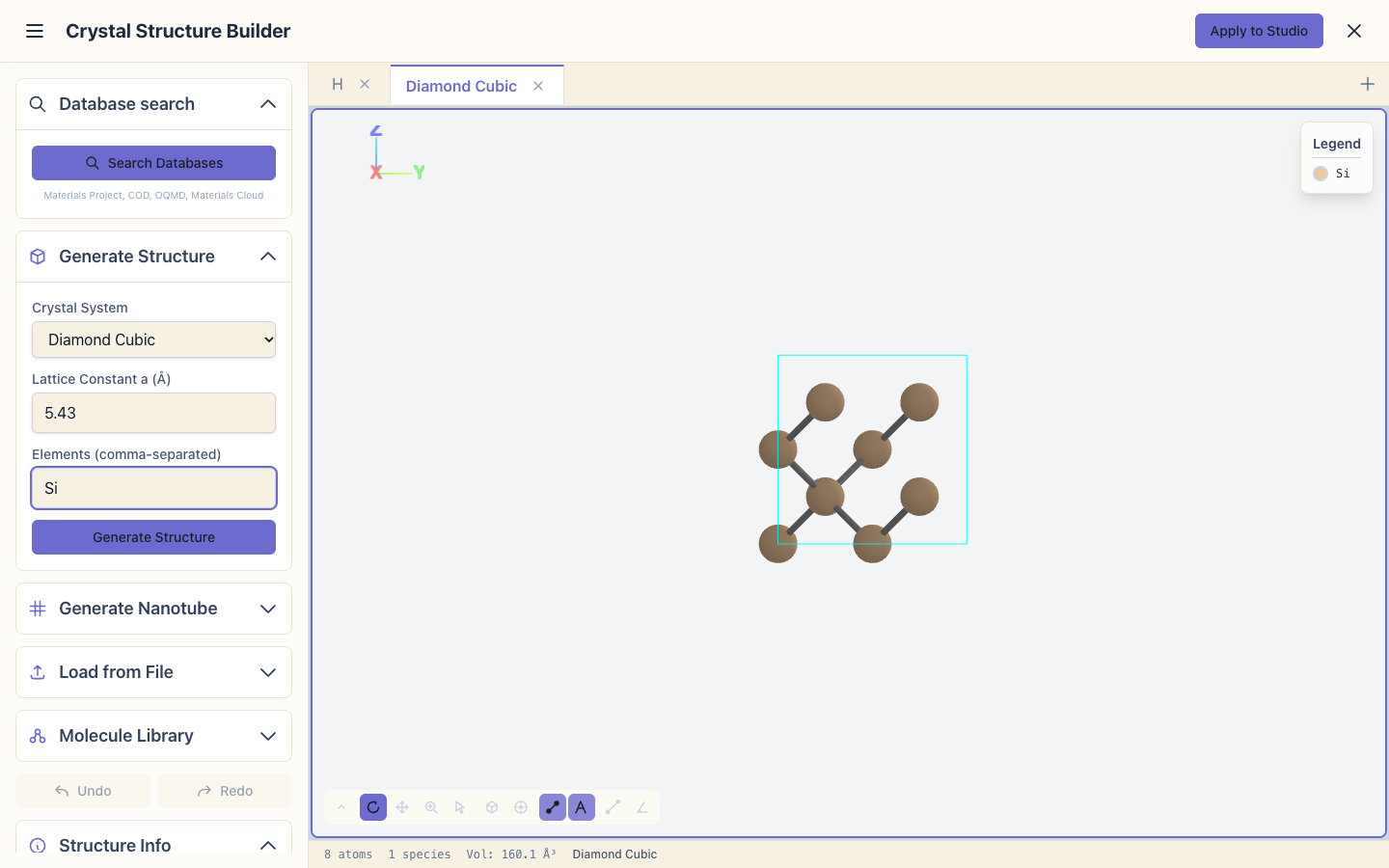
In Atomic Structure, click Edit Structure. The Crystal Structure
Builder opens. In Generate Structure, choose Diamond Cubic, set the
lattice constant a to 5.43 Å and the element to Si, and click
Generate Structure. The status bar at the bottom shows 8 atoms, 1 species: the
cubic cell of diamond silicon.
3. Make a 2x2x2 supercell
A vacancy in an 8-atom cell would sit next to its own periodic copies, only 5.4 Å away. A larger cell keeps them apart. Open Periodicity, choose Matrix, click 2×2×2 and then Apply Supercell. The status bar shows 64 atoms.
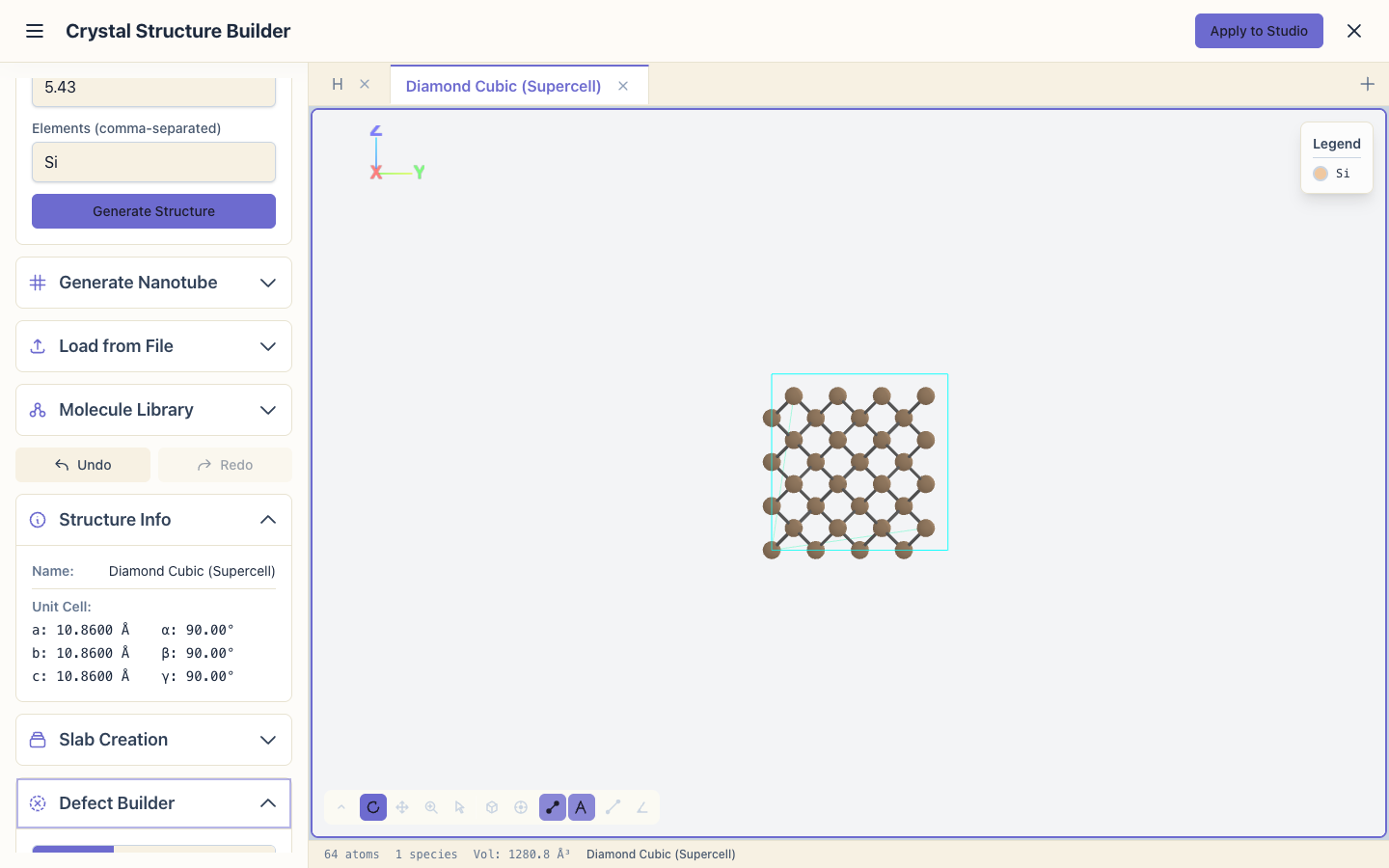
The Simple mode of the same section repeats only the picture on screen and leaves the cell as it is; its Build this supercell button turns the picture into a real supercell.
4. Remove one atom
Open Manual Edit. In Atom Properties, choose Atom 1 (Si) in the atom list; the atom is highlighted in the view. Click Delete Atom. The status bar now shows 63 atoms.
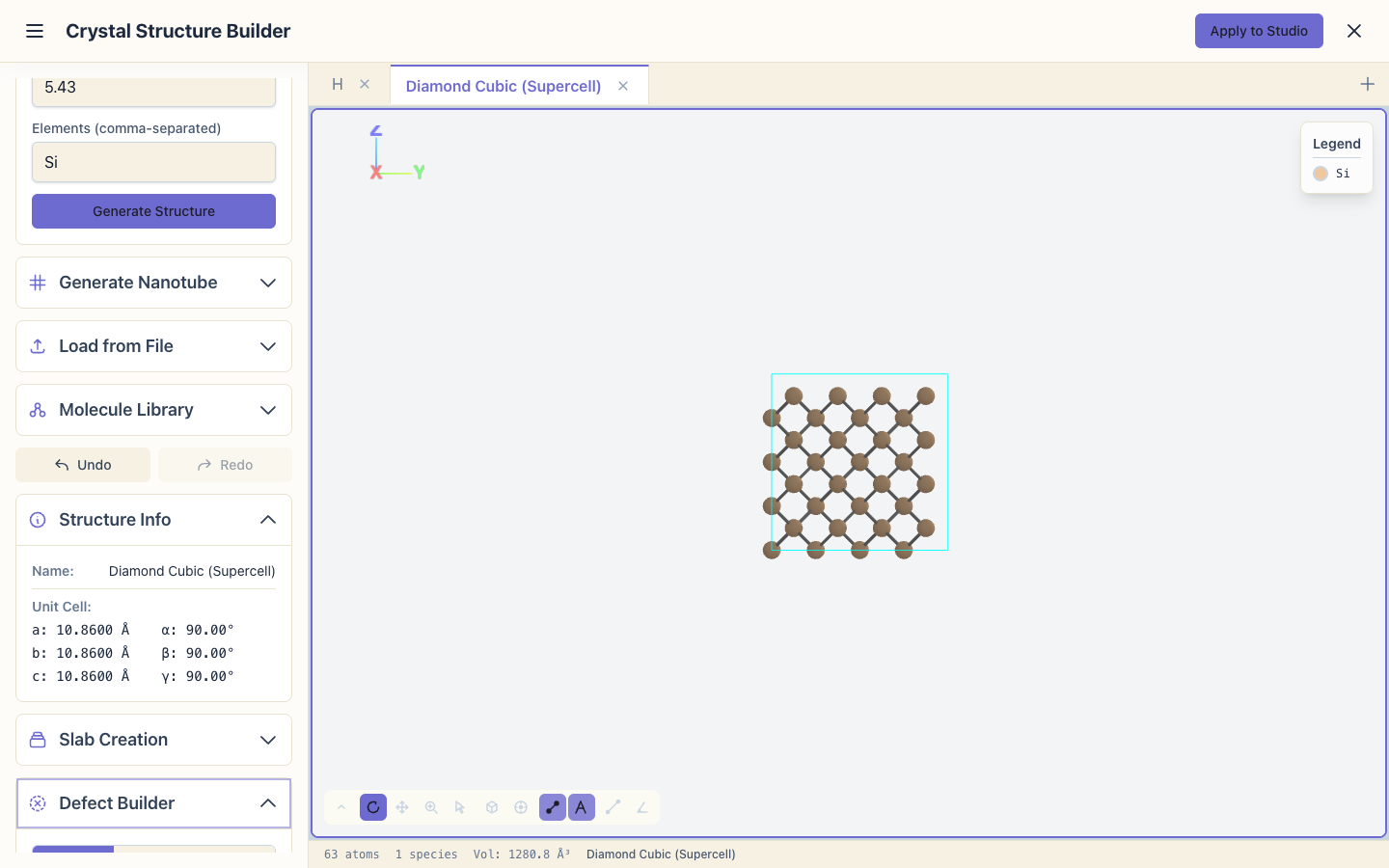
The Defect Builder does the same: Vacancy, then Remove Selected Atom. Its other button, Keep as Ghost (basis only), keeps the atom's basis functions without the nucleus (legend "Si (ghost)"). Ghosts are used for counterpoise corrections of vacancy energies; for an ordinary vacancy, remove the atom. A ghost needs radii for its own basis: see the ghost-atom section of Basis sets. Undo in History steps back from either.
Optionally, open Export and click Save as XV to keep the starting geometry (63 atoms) as a file.
5. Back to the studio
Click Apply to Studio. Set System Name to Si63.
6. Set up the relaxation with the wizard
Open the wizard (Calculation Setup Wizard in the header) and answer:
- System type: Bulk Crystal.
- Material: Semiconductor.
- What to calculate: Geometry optimization.
- Accuracy: Quick.

Quick uses a smaller basis (SZP) and coarser k-points (cutoff 8 Å), so that 63 atoms relax in minutes. It is enough to see how the atoms move; use Standard for numbers you want to publish.
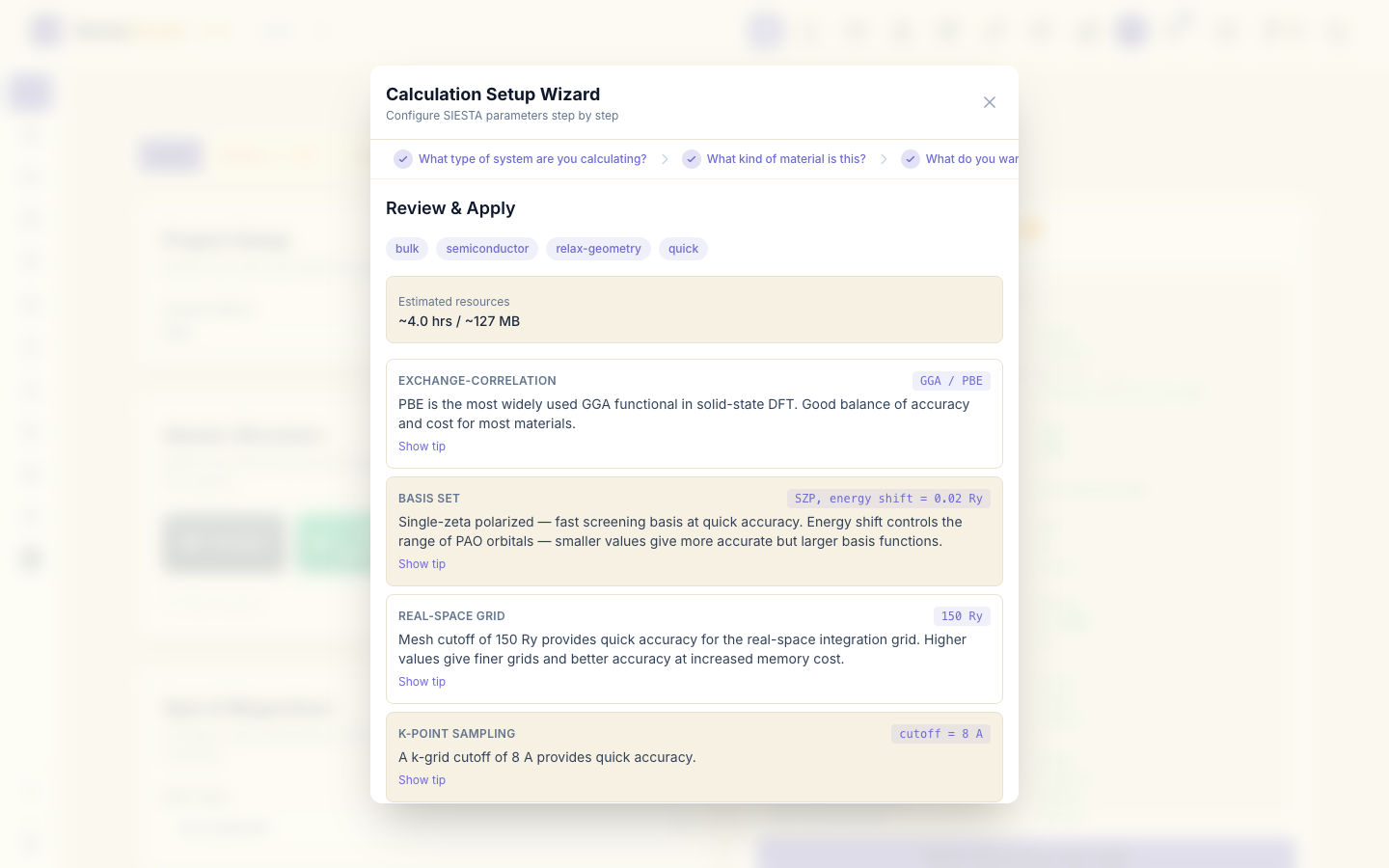
Click Apply All. In Molecular Dynamics & Relaxation the run type is now CG (conjugate gradients), with up to 200 steps, and the relaxation stops when every force is below 0.04 eV/Å. The cell stays fixed; only the atoms move.
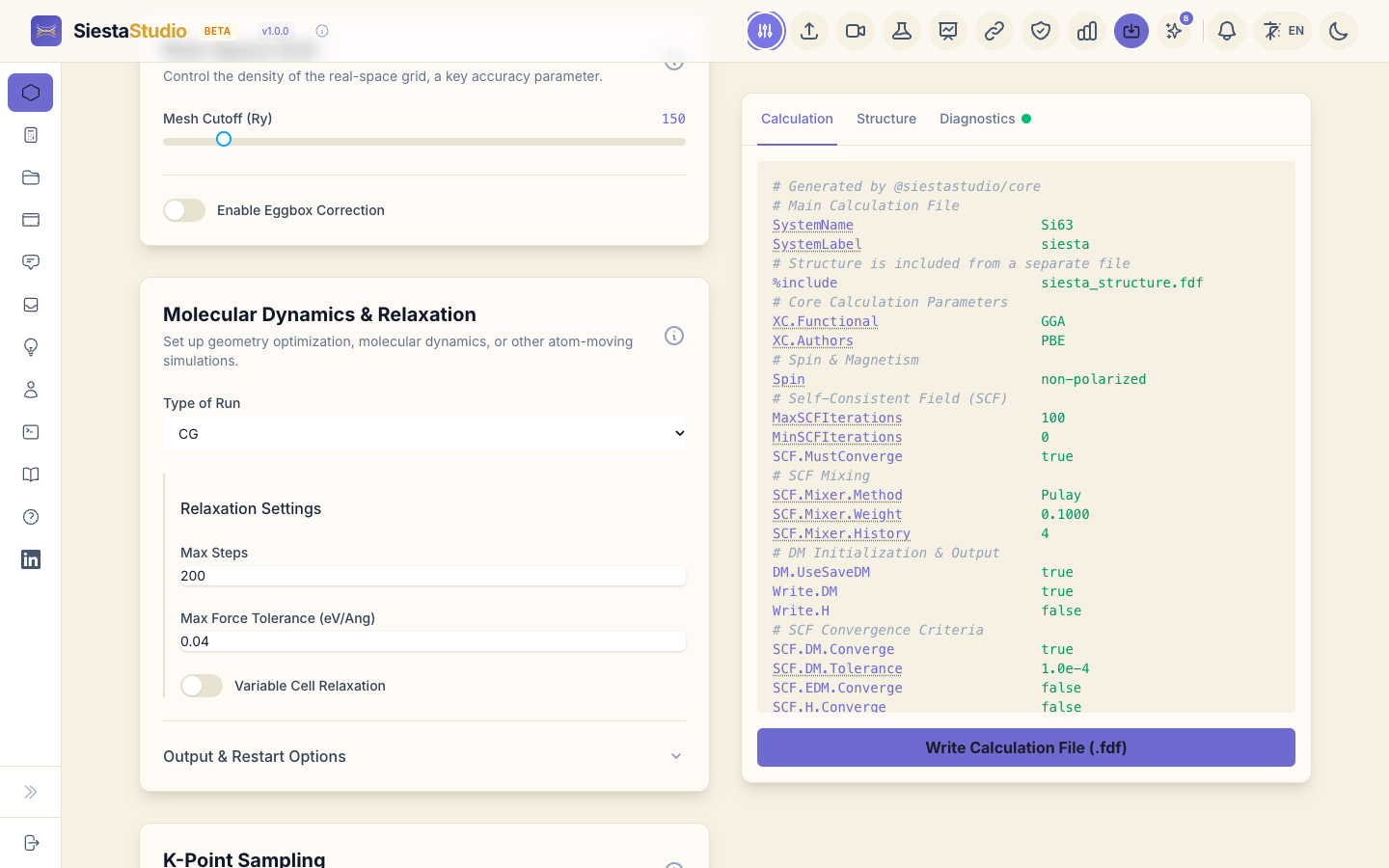
The input also asks SIESTA for the trajectory (WriteMDXmol true): the
file siesta.ANI with the geometry at every step, which the trajectory
player opens.
7. Check, download and save
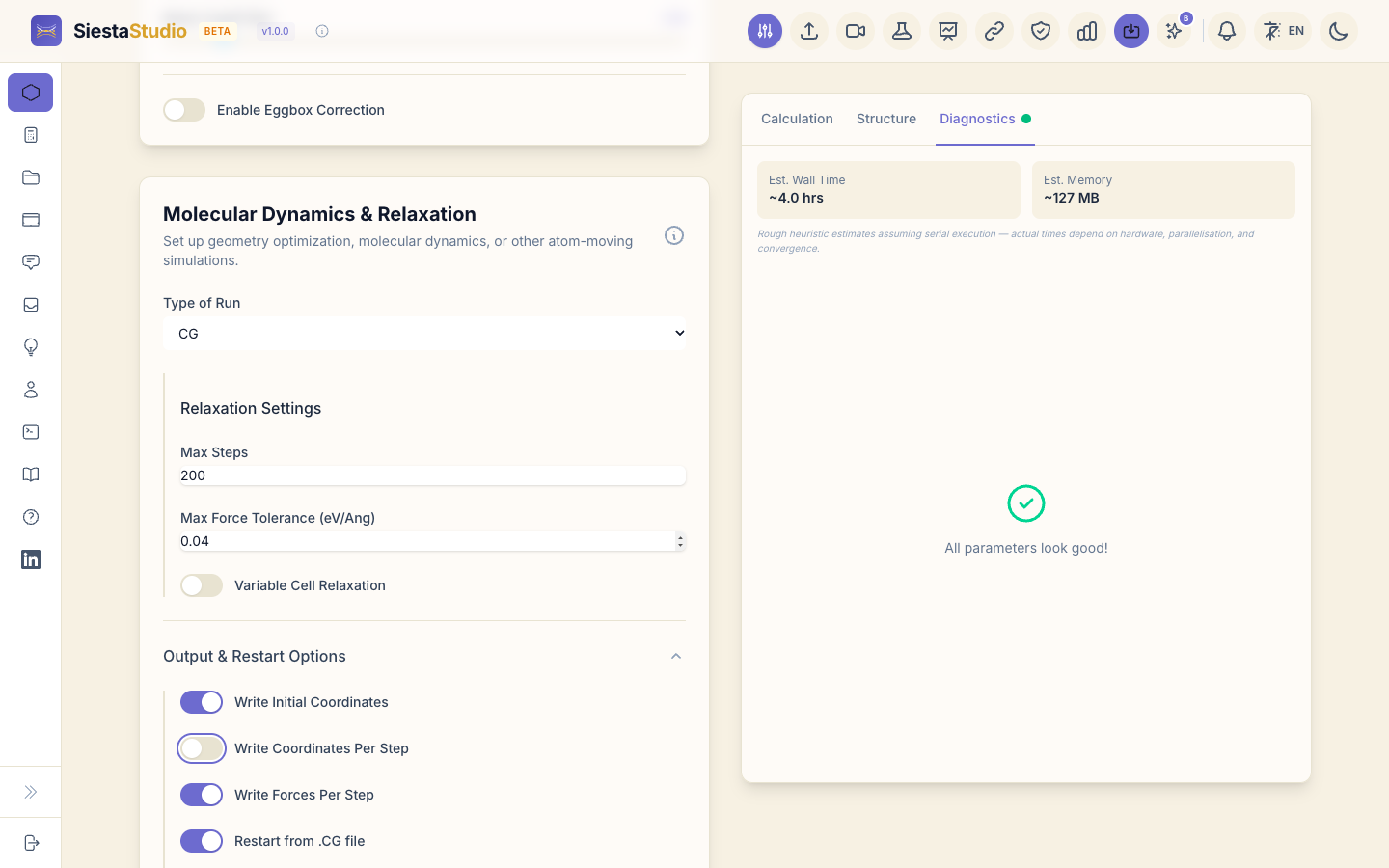
- Diagnostics reports All parameters look good!
- Download
siesta.fdf(Calculation tab) andsiesta_structure.fdf(Structure tab). The structure file lists 63 atoms. - Pseudopotentials in the header, Download All (ZIP), unzip
Si.psmlnext to the two files. - Save calculation in the header, project
Si vacancy.
8. Run SIESTA
siesta < siesta.fdf > siesta.out
SIESTA prints a block for each CG step. This run takes 18 steps (about 11
minutes). Besides siesta.out it writes siesta.XV (the final geometry) and
siesta.ANI (the geometry at every step).
9. Follow the relaxation in SiestaStudio
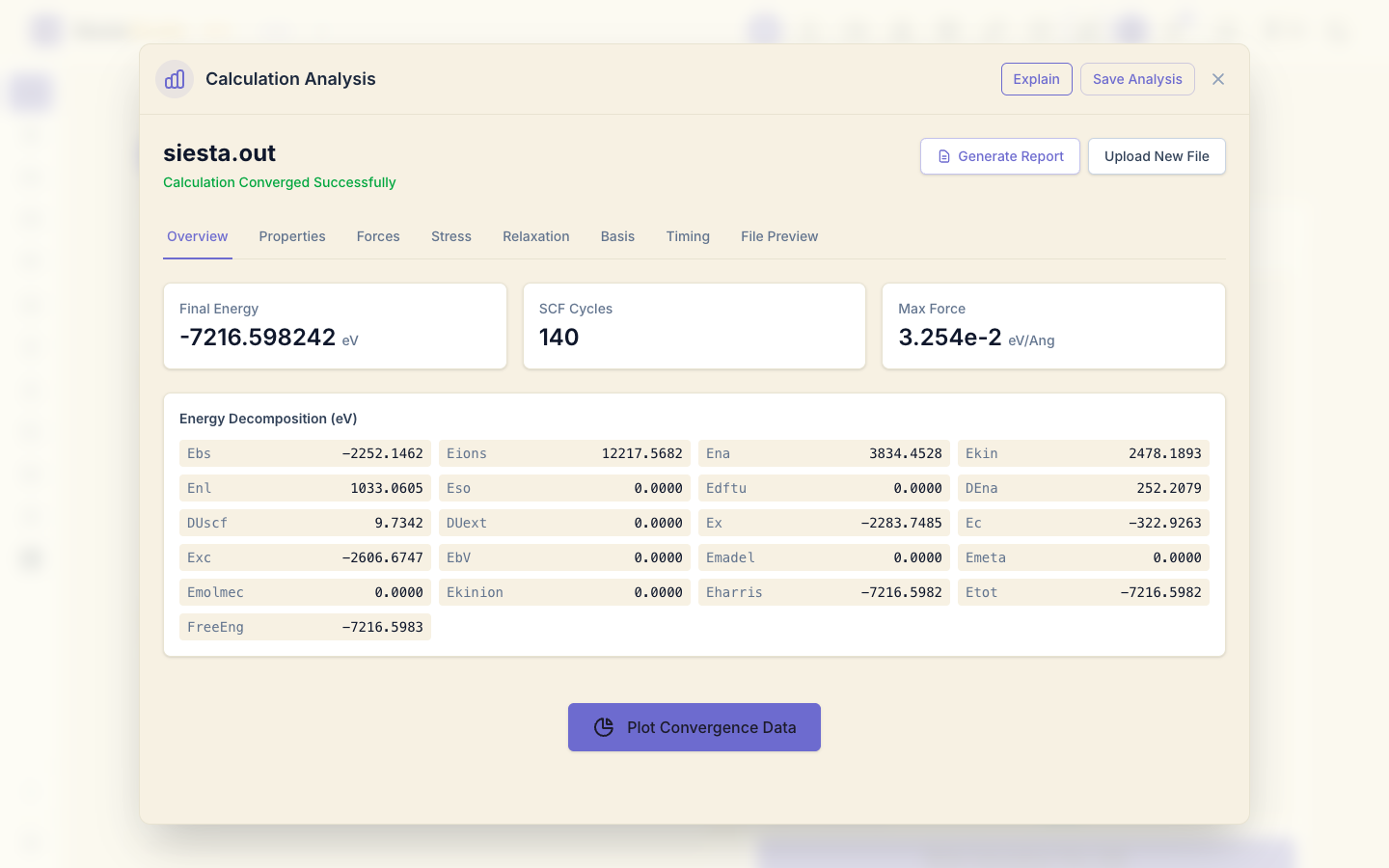
Click Analyze File and drop siesta.out. The analysis shows
Calculation Converged Successfully and, for a relaxation, a
Relaxation tab.
Relaxation shows 18 steps, the total energy at each step (it drops by 1.68 eV in all) and the largest force at each step. The final largest force is 0.0325 eV/Å, below the 0.04 eV/Å you asked for, so the relaxation finished because it converged, not because it ran out of steps.
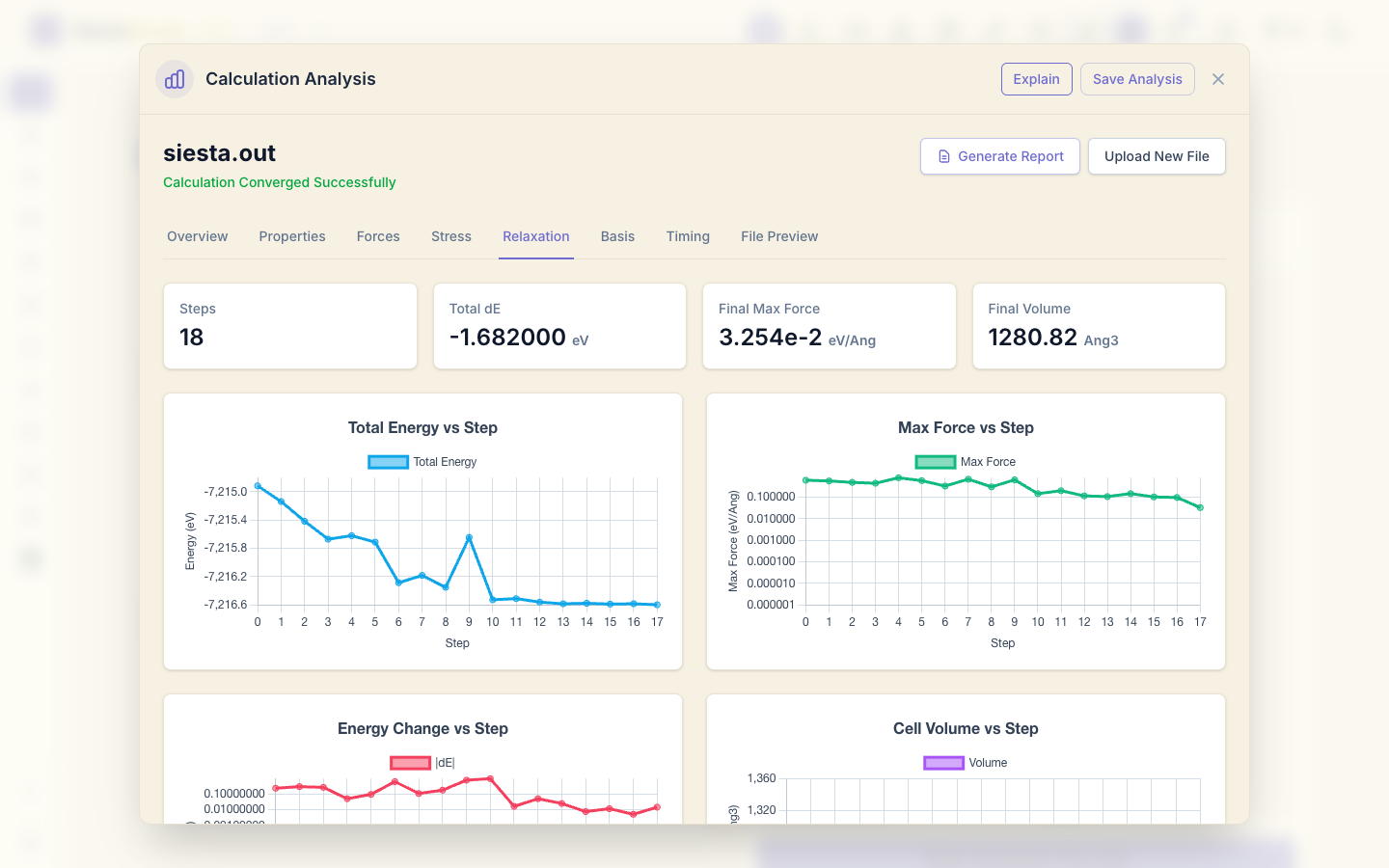
The energy does not fall at every step: it rises at 6 of the 18 steps, most at step 9 (+0.7 eV). CG sometimes overshoots and corrects on the next step, and the overall trend is what counts.
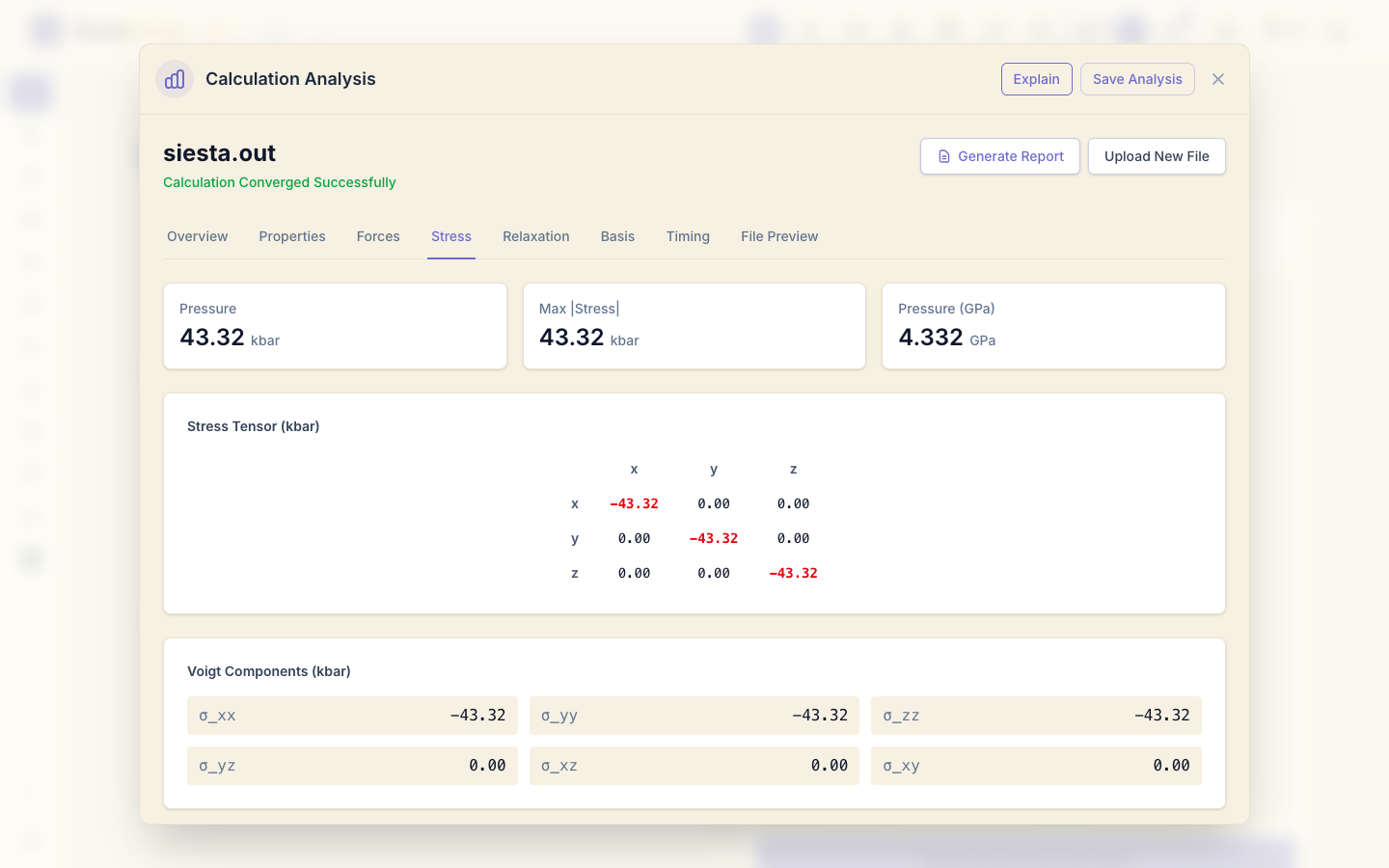
Stress shows the stress on the cell: a pressure of 43.3 kbar (4.3 GPa). The cell was kept fixed at the experimental lattice constant, and the Quick basis prefers a slightly larger silicon, so the cell pushes outward. To relax the cell as well, switch on variable cell in Molecular Dynamics & Relaxation.
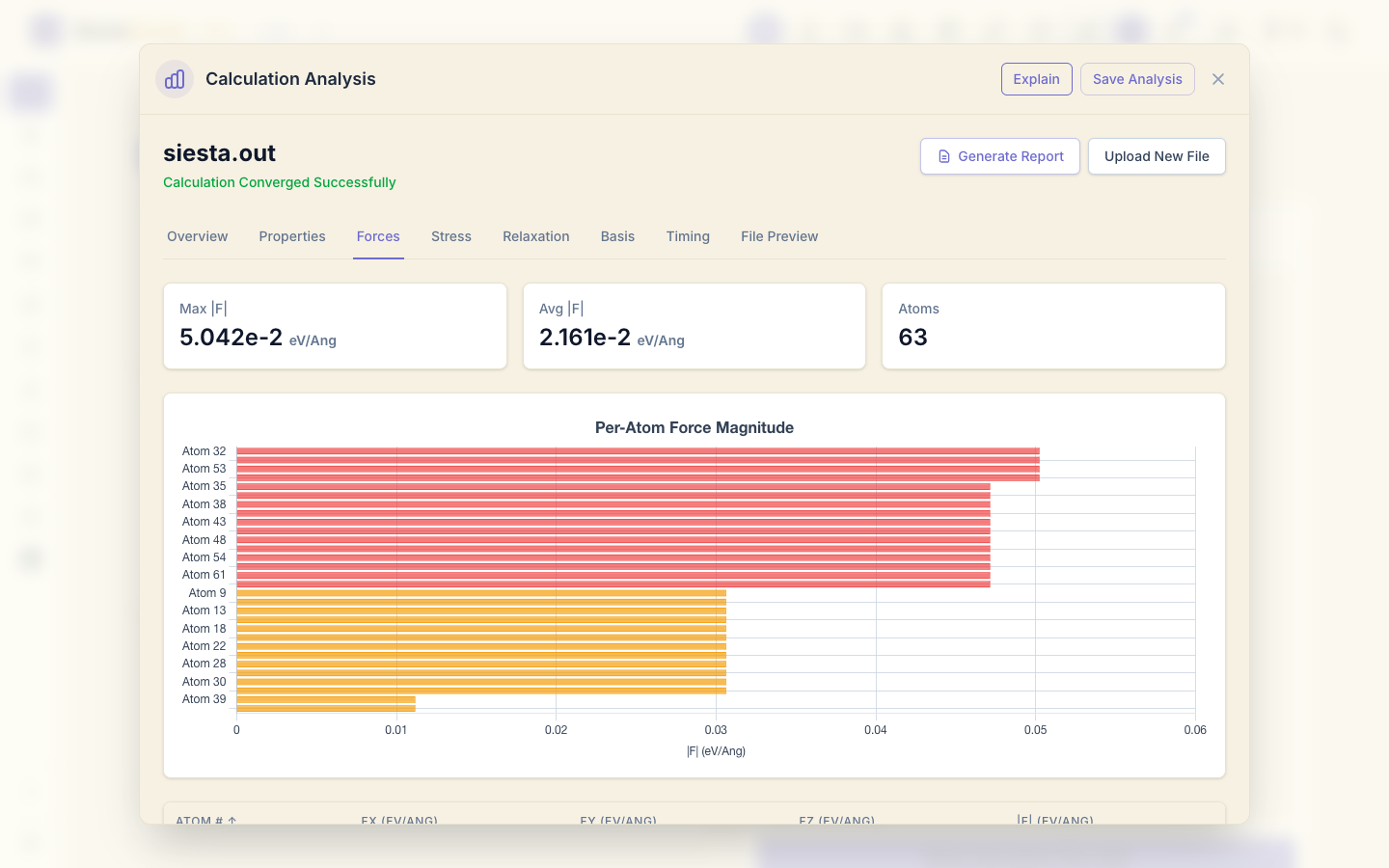
Forces lists the force on every atom at the last step. Its Max |F|, 0.050 eV/Å, is the length of the largest force vector; SIESTA's tolerance applies to each Cartesian component, and the largest component is the 0.0325 eV/Å of the Relaxation tab.
10. Watch the atoms move
Click Upload New File and drop siesta.ANI. SiestaStudio reports
Trajectory loaded — 17 frames of 63 atoms. The .ANI file has no cell:
add it with Unit Cell (optional) by choosing siesta.XV; the box then
reads "Lattice vectors loaded from siesta.XV".
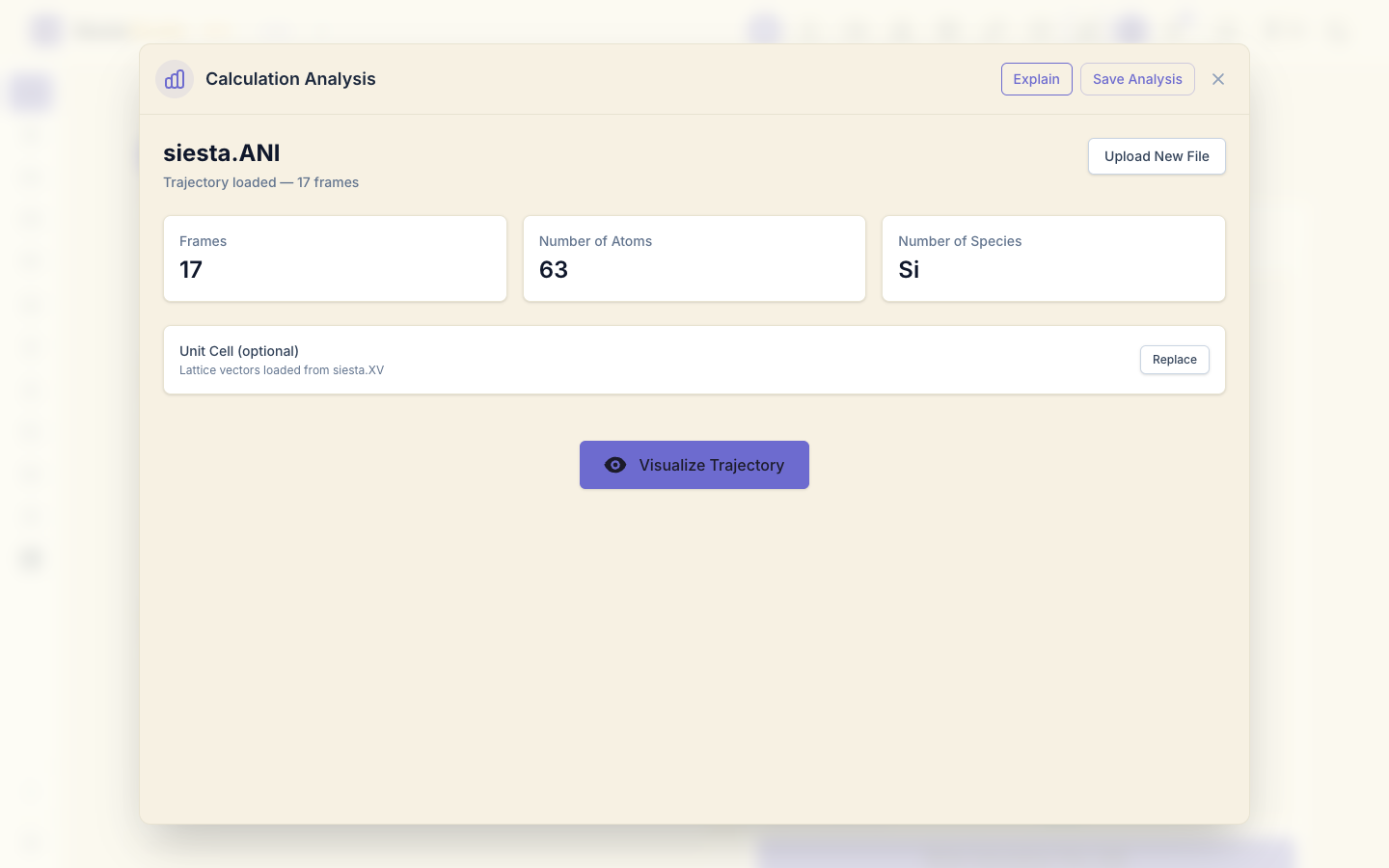
Click Visualize Trajectory and play it. The four atoms around the empty site move towards it.
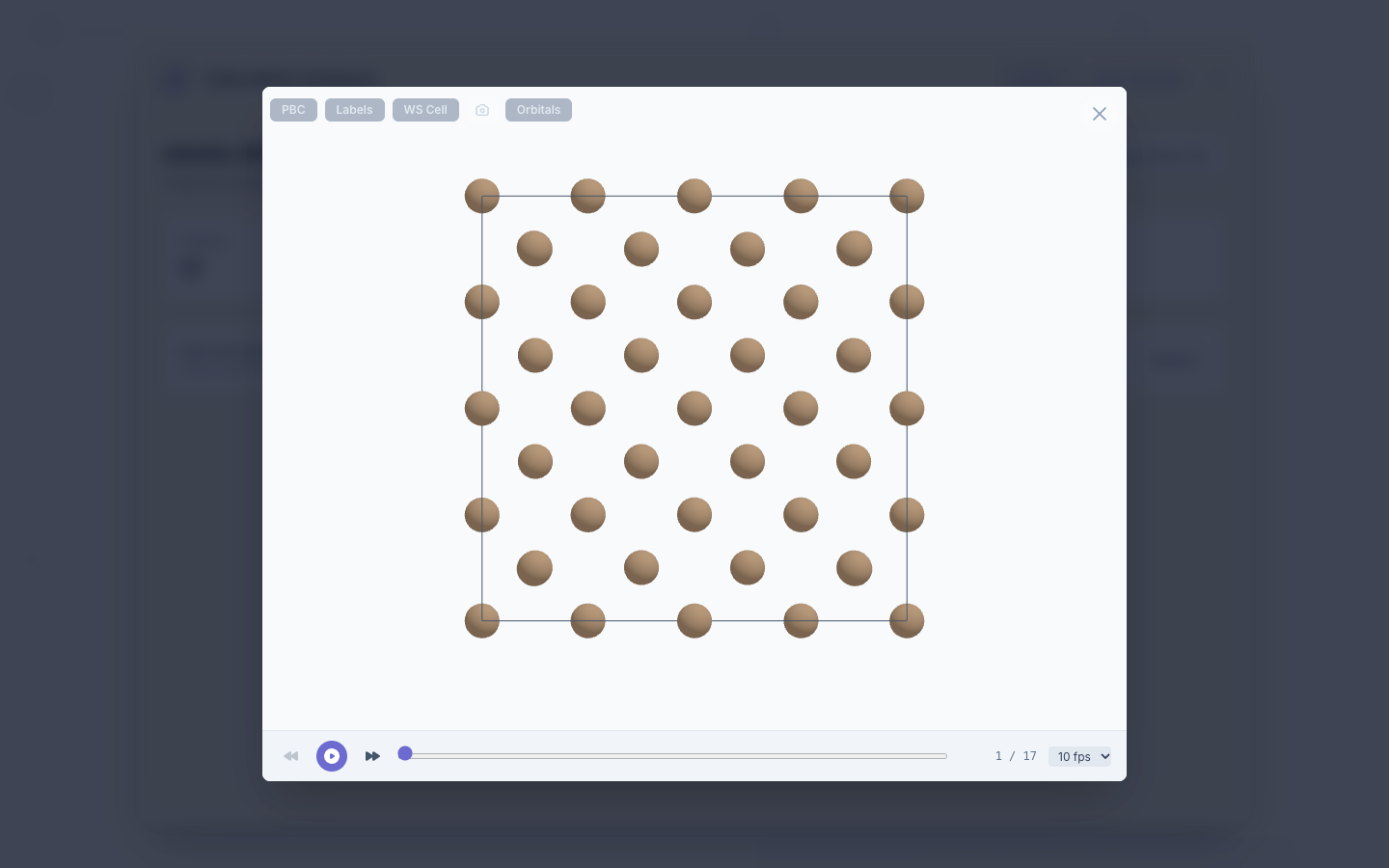
How far? Comparing siesta_structure.fdf (before) with siesta.XV (after),
each of the four neighbours moved 0.58 Å closer to the empty site, from
2.35 Å to 1.77 Å, all by the same amount: the relaxation kept the symmetry of
the vacancy. With a larger basis and cell the inward move is smaller; Quick
settings exaggerate it, but the direction and the symmetry are right.
The image button in the viewer (Save image (PNG)) saves the current view as a picture.
11. Save the analysis
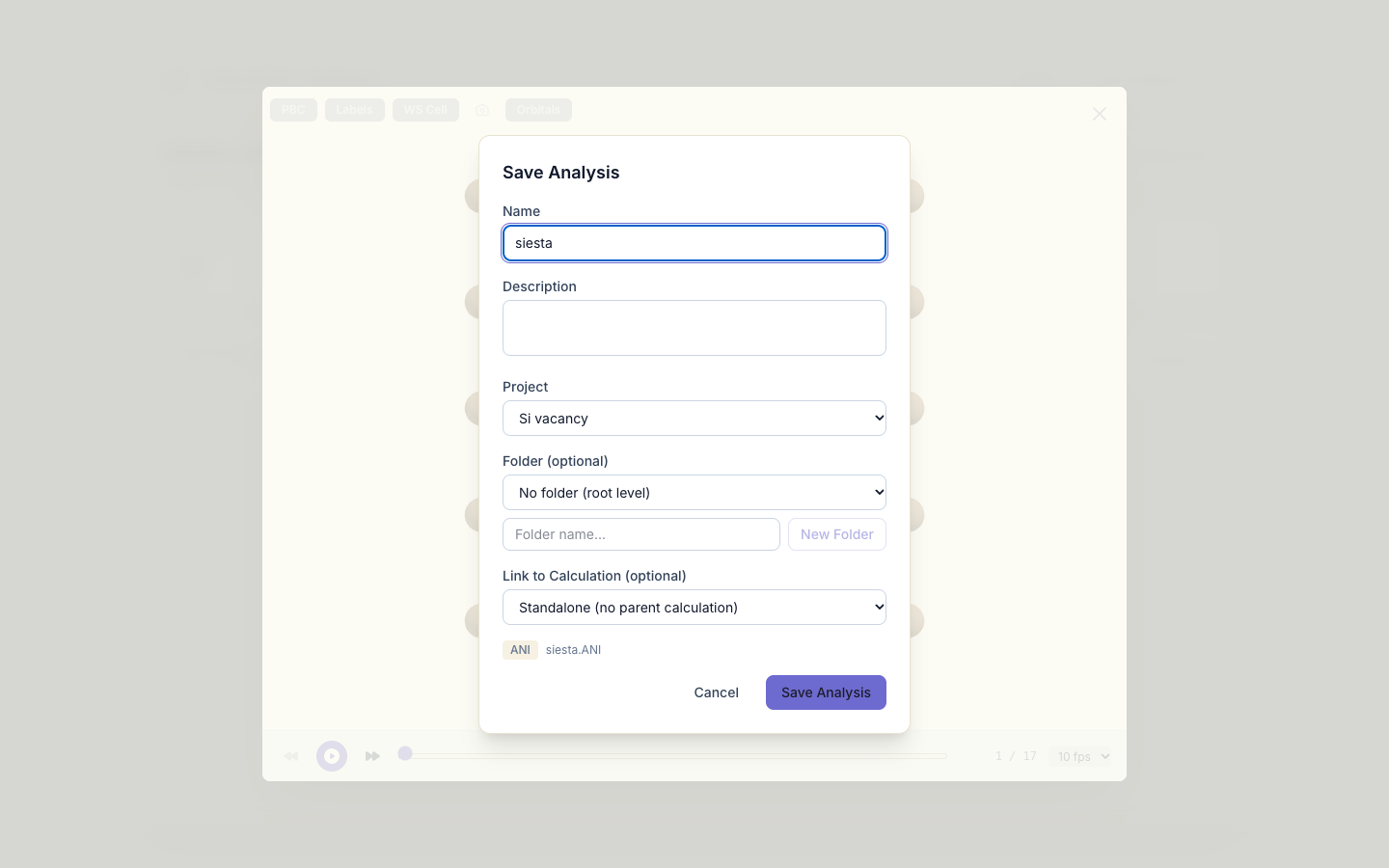
Click Save Analysis and choose the project Si vacancy.
What next
- Molecular dynamics: let the atoms move with temperature instead of downhill.
- Building structures: more of the structure builder (symmetry, doping, strain, interstitials, NEB paths).