Projects and collaboration
A project keeps everything about one study together: calculations, analysed results, notes, files and spreadsheets. You can share it with colleagues, each with a role that decides what they may change. In this tutorial two people work on one MgO project:
- you build the project: a calculation, a saved analysis, a note, a comment and a sheet,
- you invite a colleague as a viewer, then make them an editor,
- your colleague reads the project and leaves a comment,
- you remove them again and download your data.
It takes about 20 minutes. No SIESTA run is needed: the analysis comes from the run of Your first calculation.
Before you start
- A SiestaStudio account, and a colleague with an account (or a second account of your own in another browser).
- The
siesta.outof an MgO run, for example from Your first calculation.
1. A project with a calculation and an analysis
Create a project MgO study and open the studio in it. Import MgO
(Search DB, MgO, mp-1265), run the wizard (Bulk Crystal,
Insulator, Single-point energy, Standard, Apply All) and
Save calculation into the project.
Then click Analyze File, open the siesta.out, and Save Analysis
into the same project.
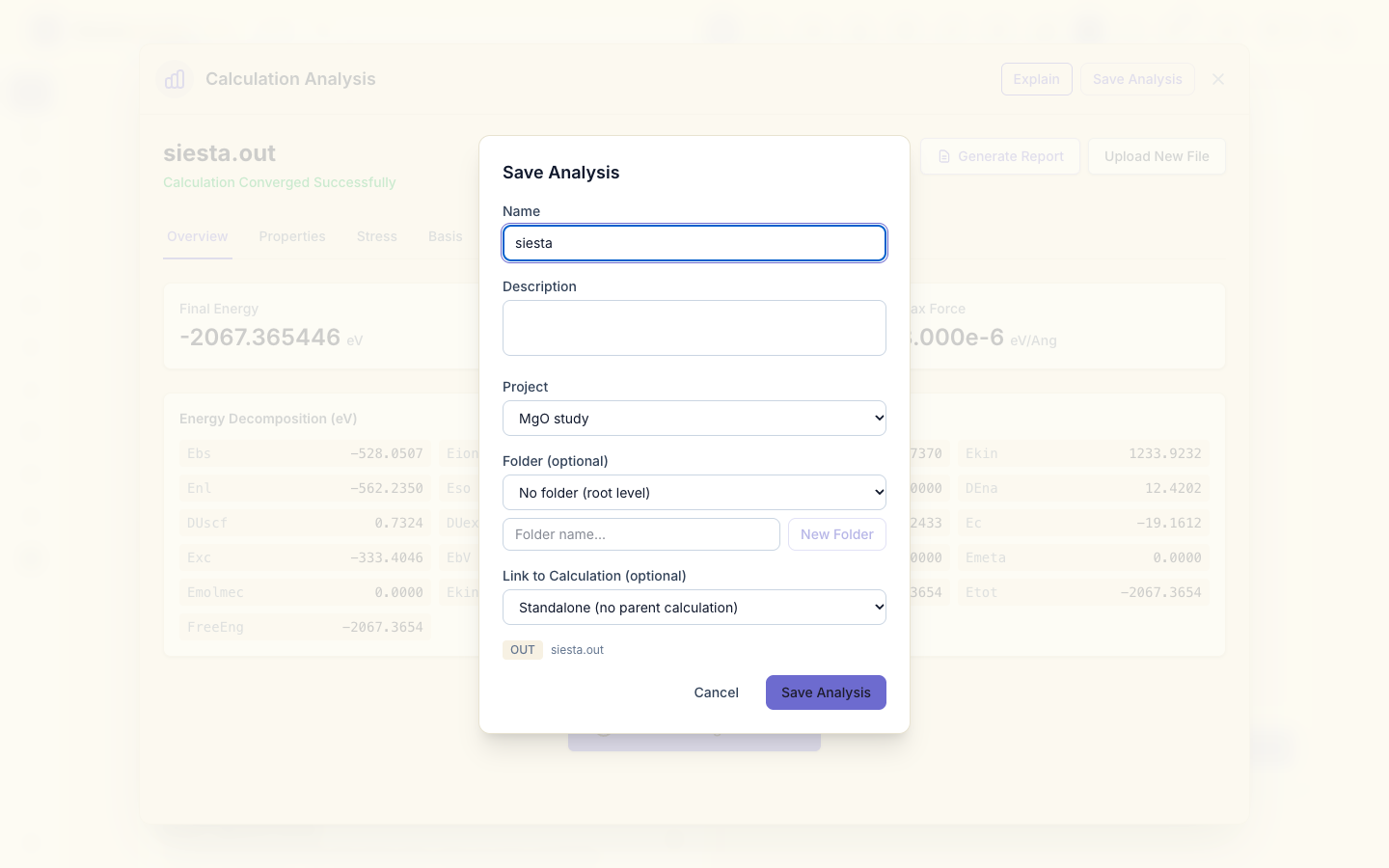
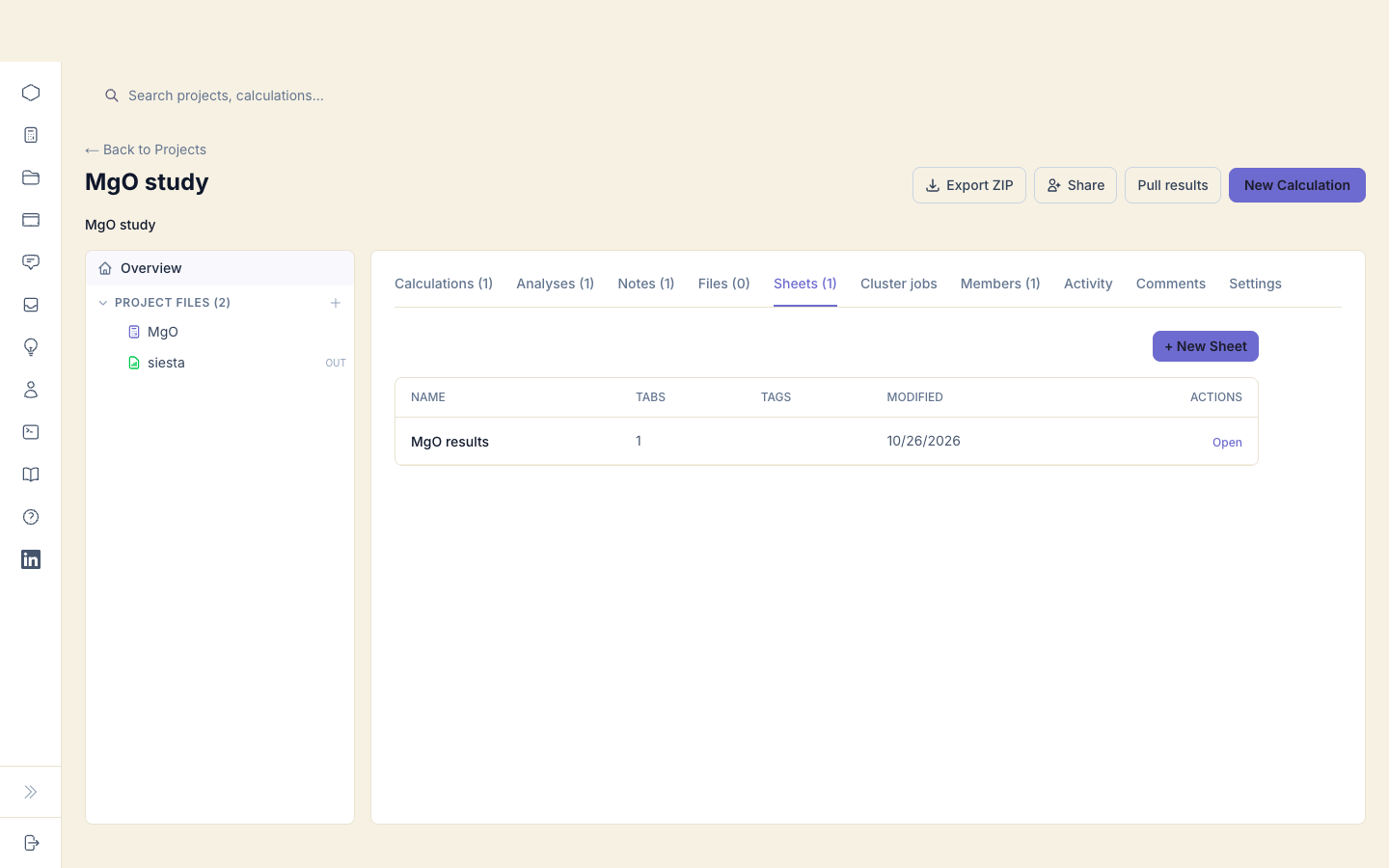
Open the project (Projects in the sidebar). The tabs list what it holds: Calculations (1), Analyses (1), and empty Notes, Files and Sheets. Load on a calculation reopens it in the studio.
2. A note, a comment, a sheet
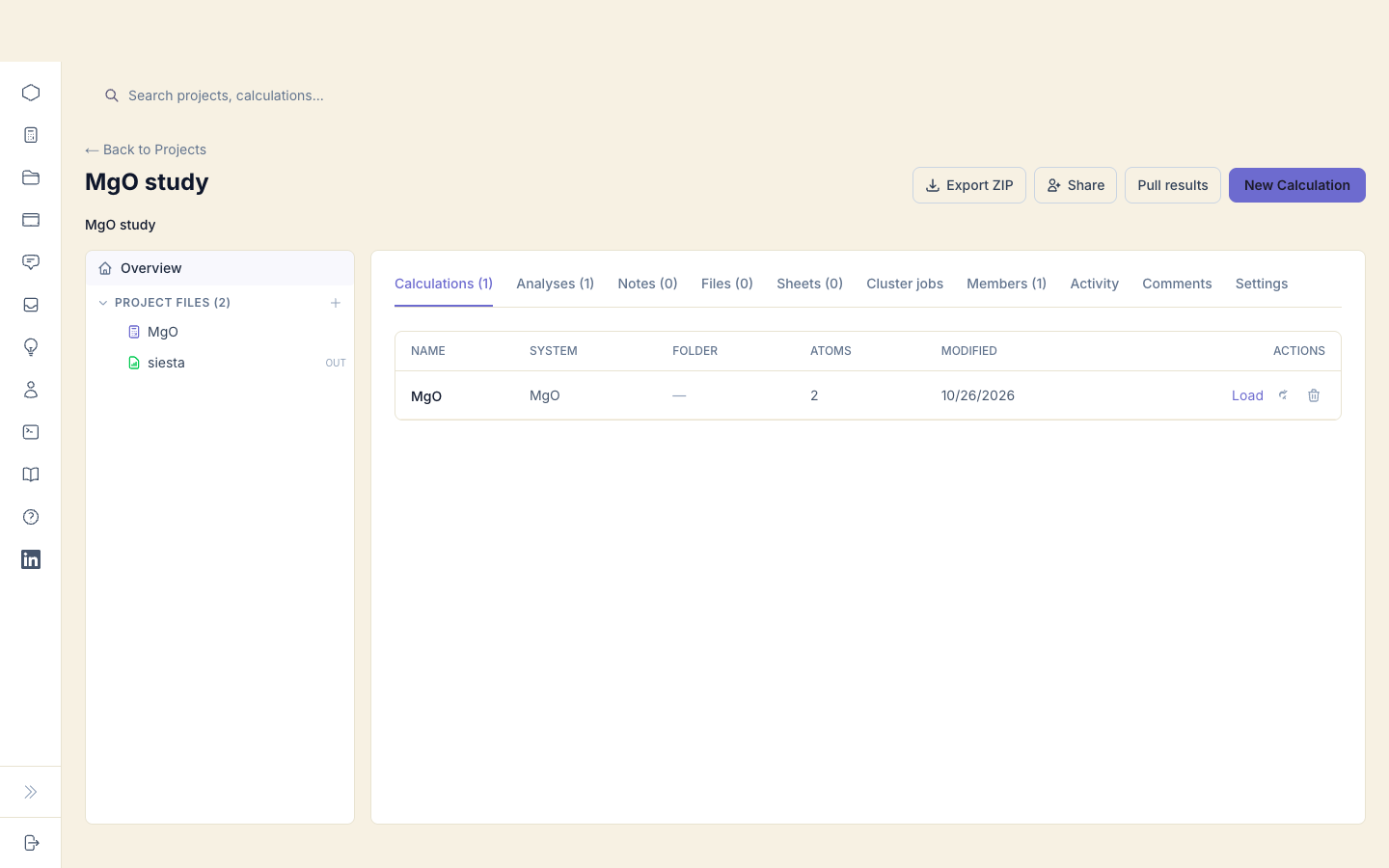
Notes are for what you want to remember about the study. Open Notes,
click New Note, give it a title (MgO: first results) and write the
body in Markdown, for example the energy and Fermi level of the run and what
to do next. Click Save Note.
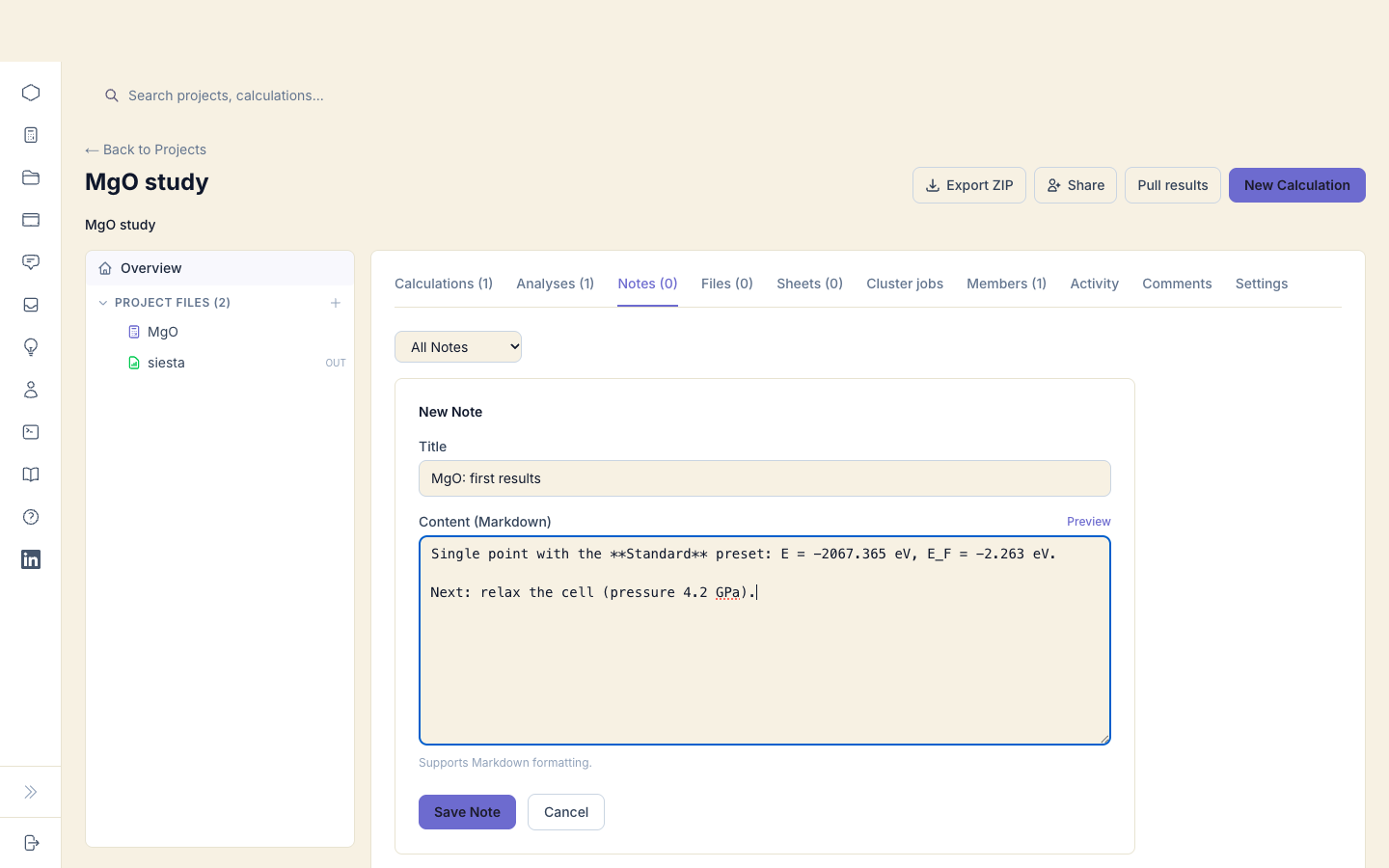
Comments are a conversation with the people you share the project with.
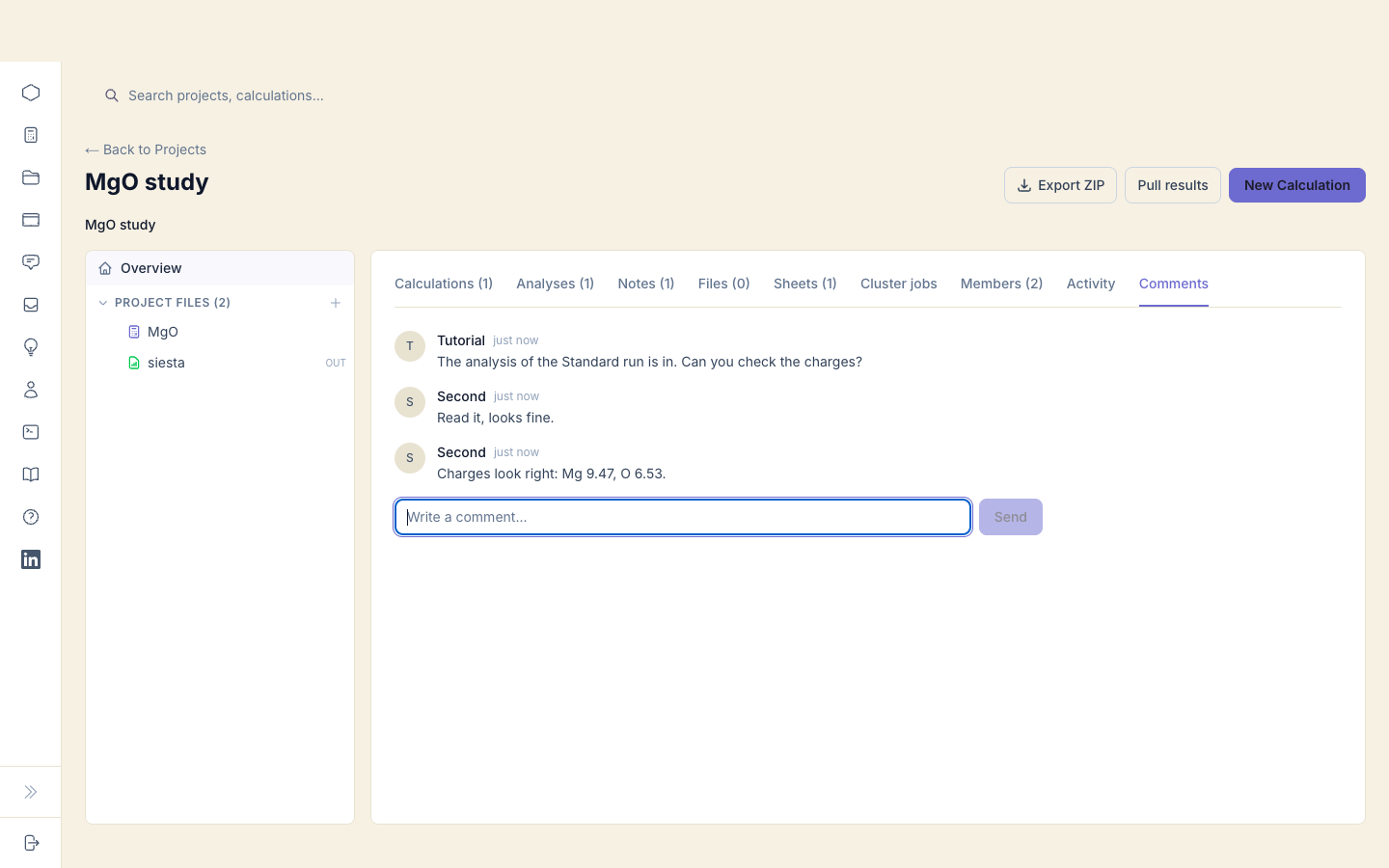
Open Comments, write The analysis of the Standard run is in. Can you check the charges? and click Send.
Sheets are spreadsheets for collecting numbers across calculations. Open
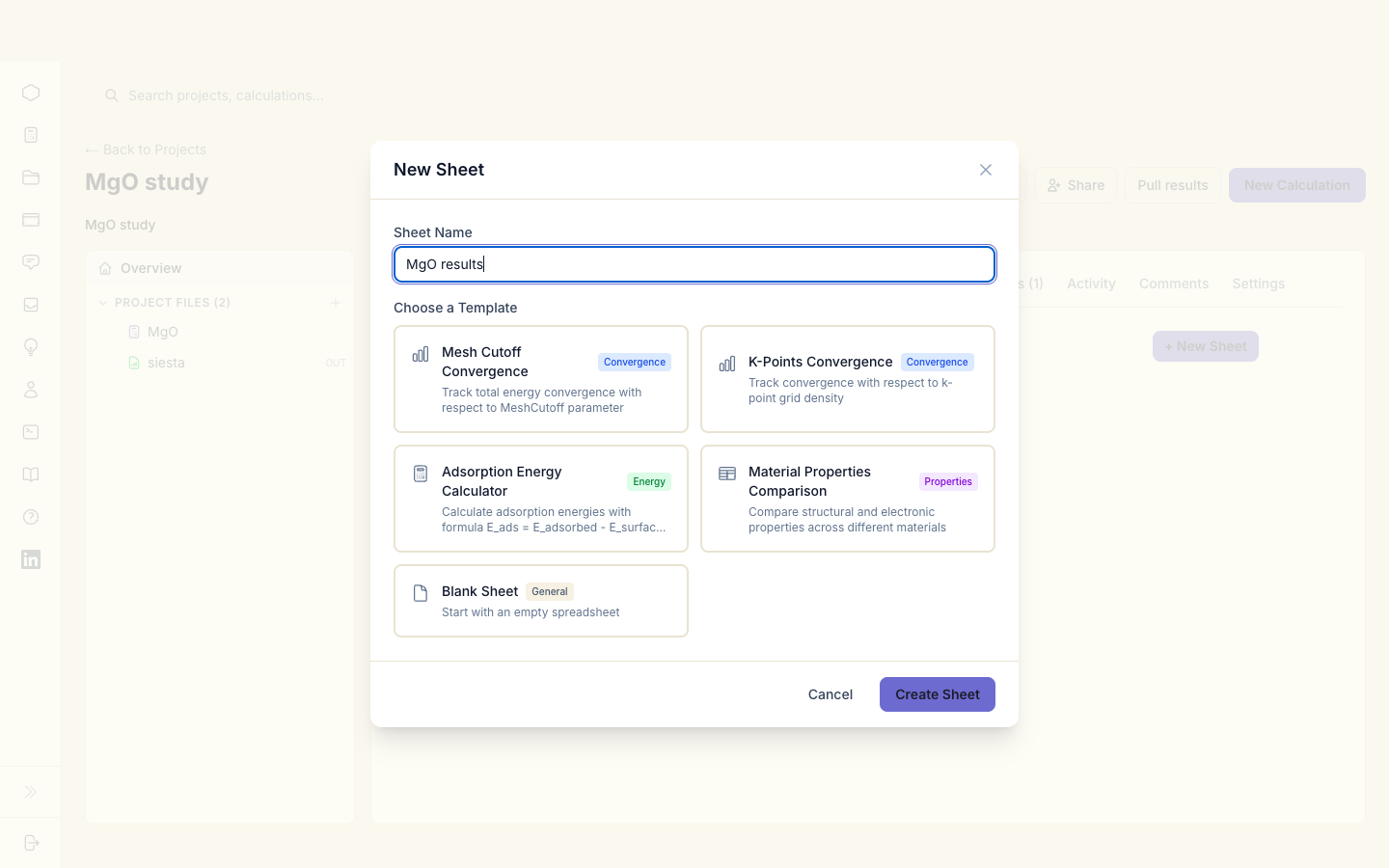
Sheets, click + New Sheet, name it MgO results, choose the template
Material Properties Comparison, and click Create Sheet. The sheet is
linked to the project; Open starts the spreadsheet editor.
3. Share the project
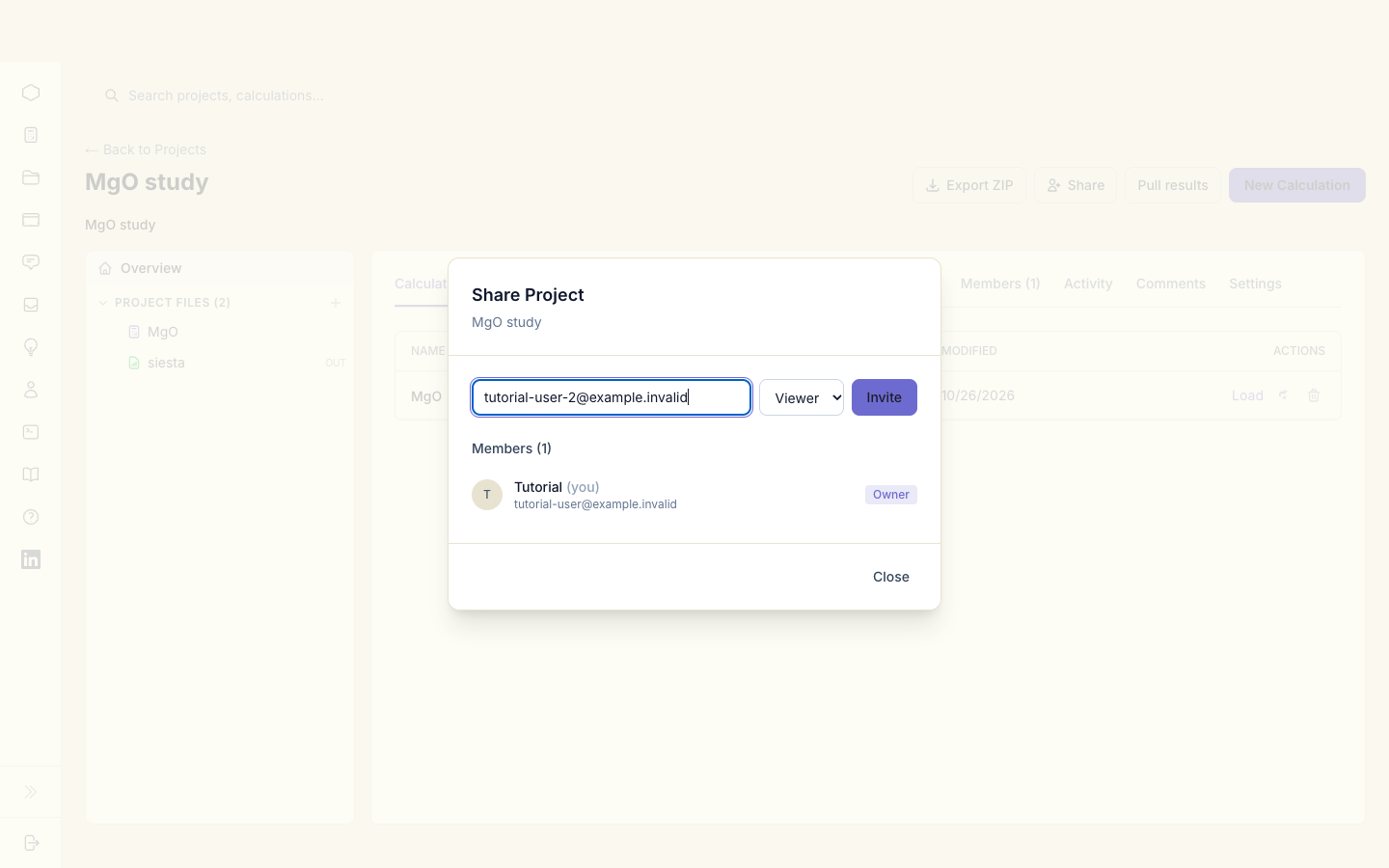
Click Share, type your colleague's e-mail address, choose Viewer, and click Invite. The dialog says Invitation sent!
The roles:
- Viewer: reads everything in the project and writes comments.
- Editor: also adds and changes calculations, analyses, notes, files and sheets.
- Owner: you; also manages members and settings, and can delete the project.
4. Your colleague accepts
Your colleague gets a notification (the bell in the header) and an e-mail. Clicking the notification opens Pending Invitations, where they see MgO study, Invited by ..., Role: Viewer, and click Accept.
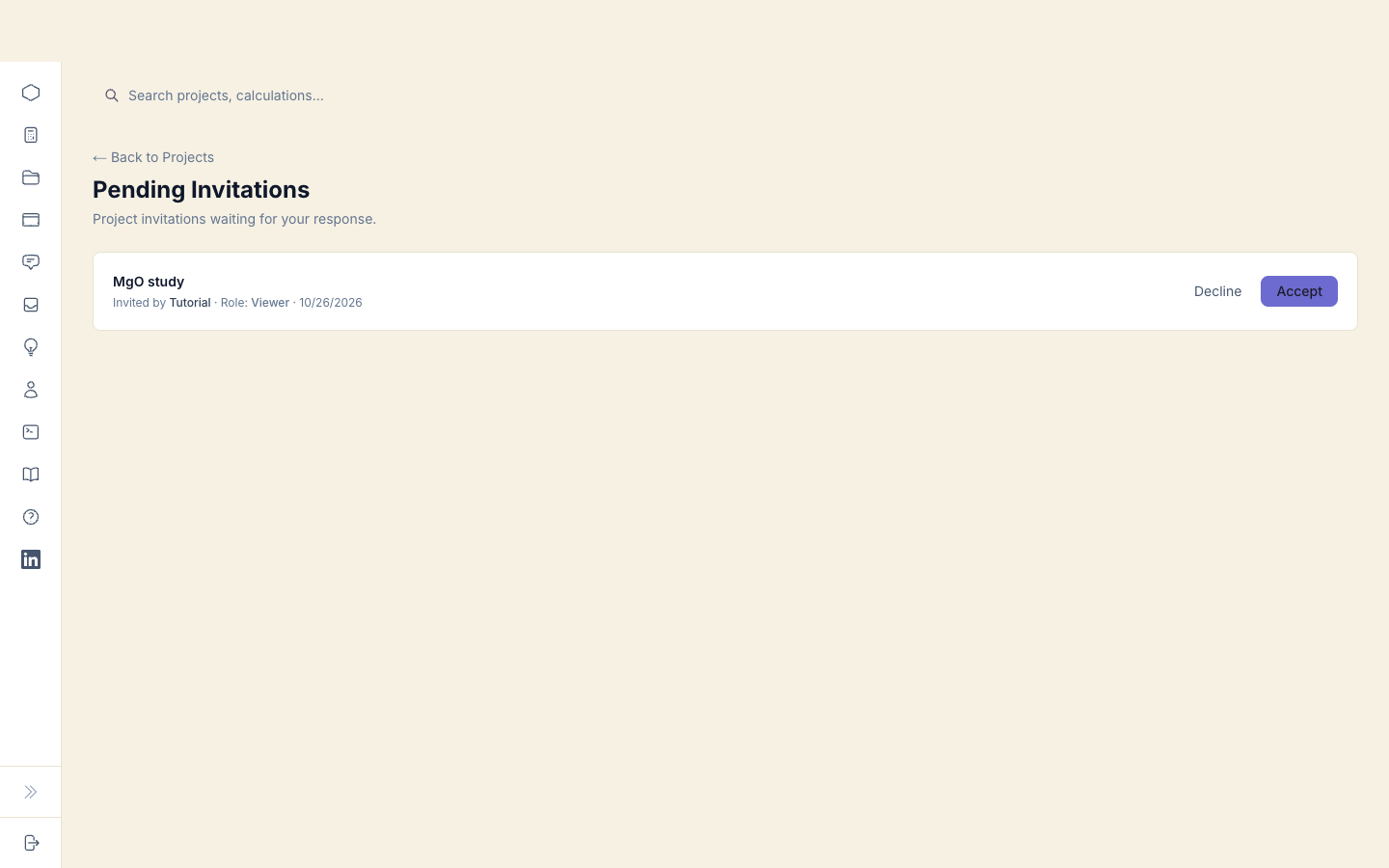
The project now appears in their list. They see the same tabs and contents: Calculations (1), Analyses (1), Notes (1), Sheets (1).
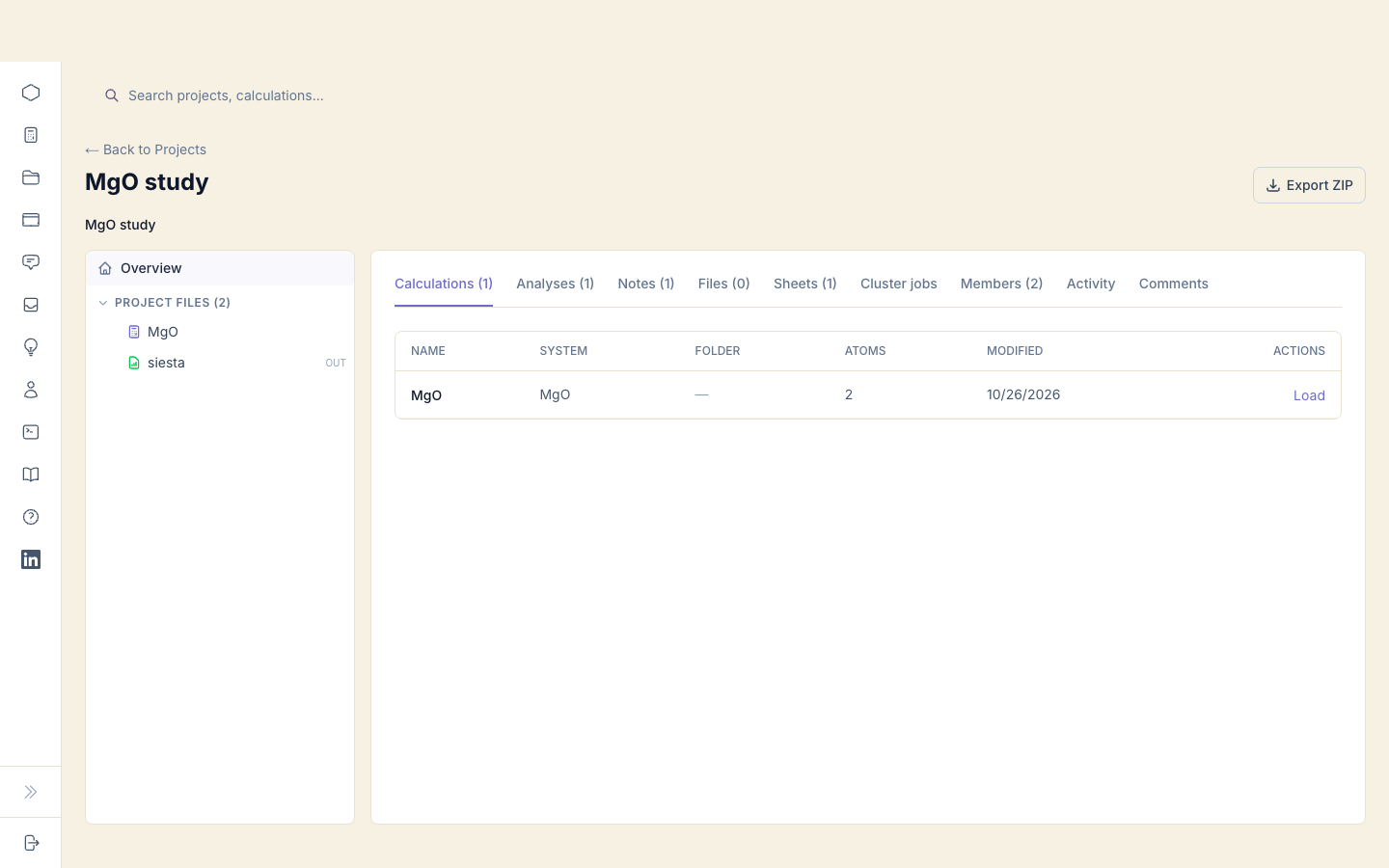
As a viewer they cannot change anything: SiestaStudio refuses edits to the note and new notes from them. They can still comment, so a viewer can review the project and leave remarks. To let them change the project, make them an editor.
5. Make your colleague an editor
Open Share again. Your colleague is listed under the members; change their role to Editor.
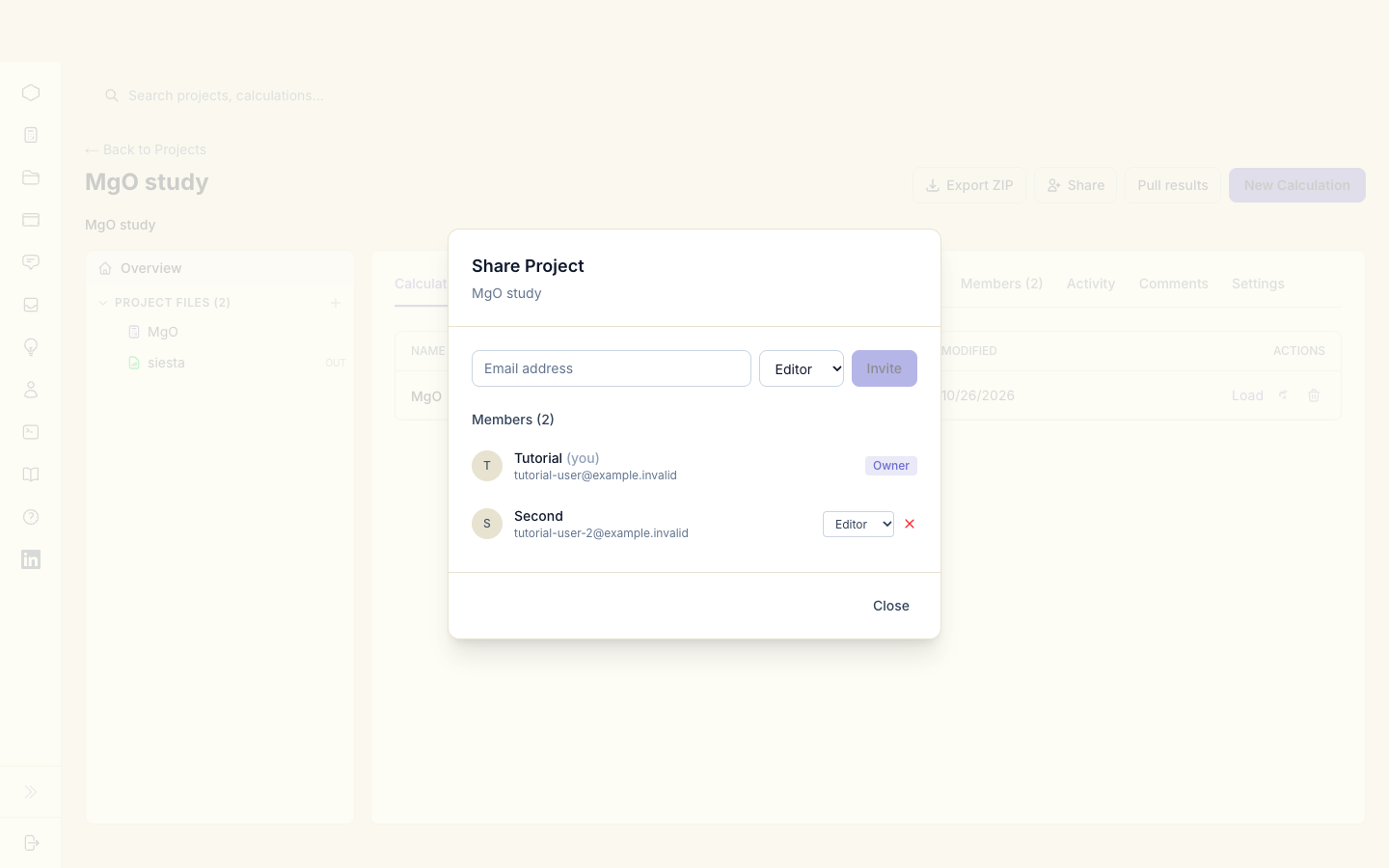
Now they can edit the note. In Comments, under the remark they left as a
viewer, they add: Charges look right: Mg 9.47, O 6.53.
Activity lists who did what in the project.
6. Remove a member
When the collaboration ends, open Share and remove your colleague. The project disappears from their list, and they can no longer open it.
7. Take your data with you
Two downloads:
- Export ZIP on the project page: each calculation's two input files (calculation and structure) with its details, the analyses' summaries and the notes, to archive or to move elsewhere.
- Profile → Danger Zone → Export My Data: everything SiestaStudio holds about you, as a ZIP with a README that explains each file: your profile and settings, calculations, projects (with their analyses and notes), sheets, the comments you wrote, uploaded-file records, cluster jobs and connections (without the stored key or password), support tickets, sent messages, and your recent account activity.
Delete My Account (Profile → Danger Zone) removes your account and everything you own.
What next
- Running on a cluster: let SiestaStudio submit the runs of the project to a cluster and bring the results back.
- Workflows at scale: many calculations at once.